

A to-do list with a calendar view: Upcoming, as a list or a month
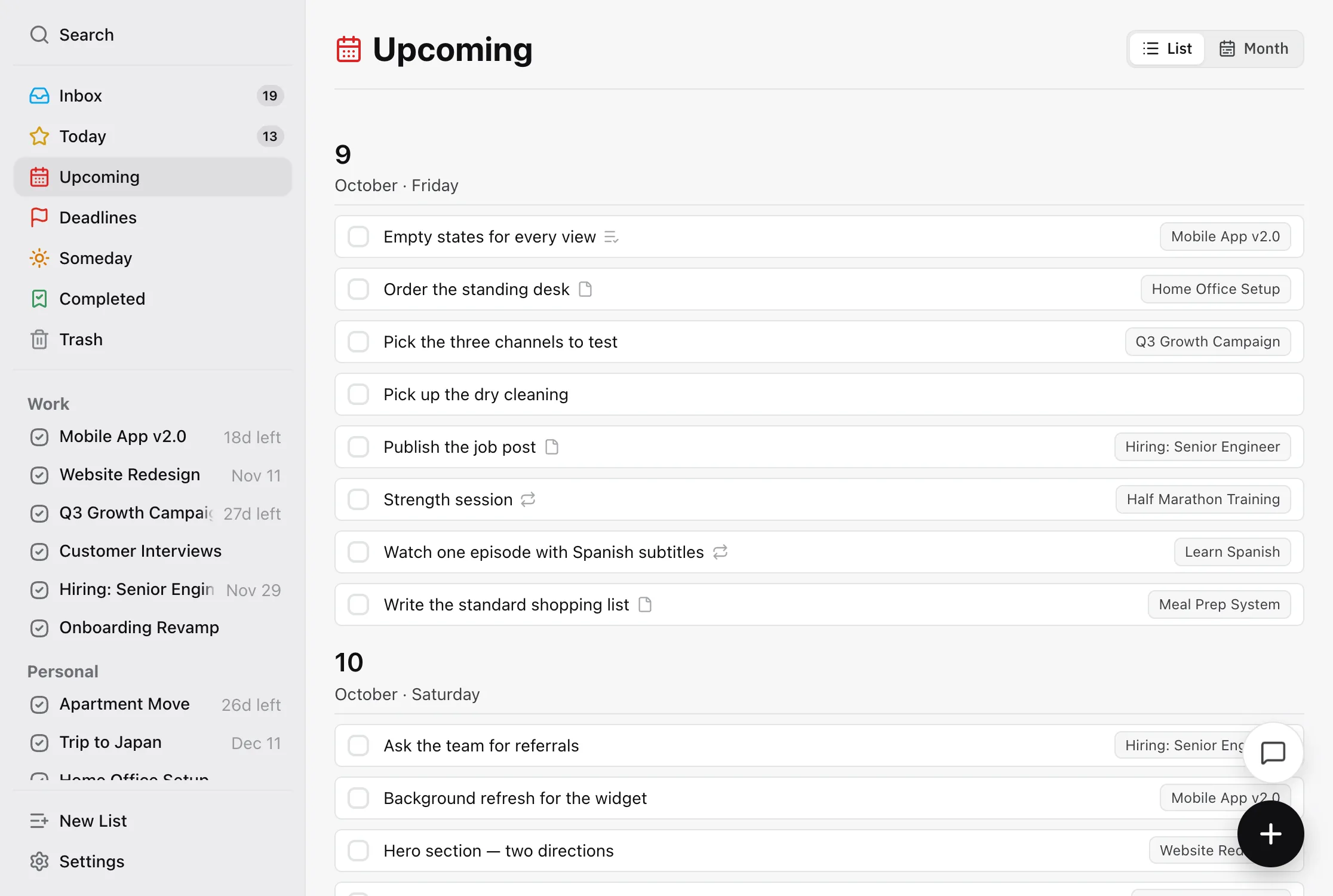
TaskPocket's Upcoming view has two layouts. List is free on every plan and groups the tasks dated after today by day. Month is a Premium calendar grid that keeps the past in view: finished and overdue tasks sit on their days, and scheduled repeats show their coming dates. Drag a task to another day in either layout to move it.
By Bohdan StefaniukLast updated
What a list of days can’t show you
A list grouped by day is good at one thing: telling you what’s next. That’s the right shape for the next few days and the wrong one for a month. Ten tasks on the 14th and nothing on the 15th look the same as you scroll past, and you find the pile-up on the morning you reach it.
A list also forgets. Once a task is done it leaves, so the list can’t tell you that last Tuesday was the day you cleared six things, or which day the overdue task was meant for.
Then there are repeating tasks. A repeating task is one task with one date, so “every Monday” shows up once, on the next Monday. That’s true of TaskPocket’s own list too. The rest of the month looks emptier than it is until each Monday turns up.
Two layouts of one view
The Upcoming header has a switch with two options, List and Month. Both show the same tasks. A task sits on its start date, or on its deadline if it has no start date, and the browser remembers which layout you picked.
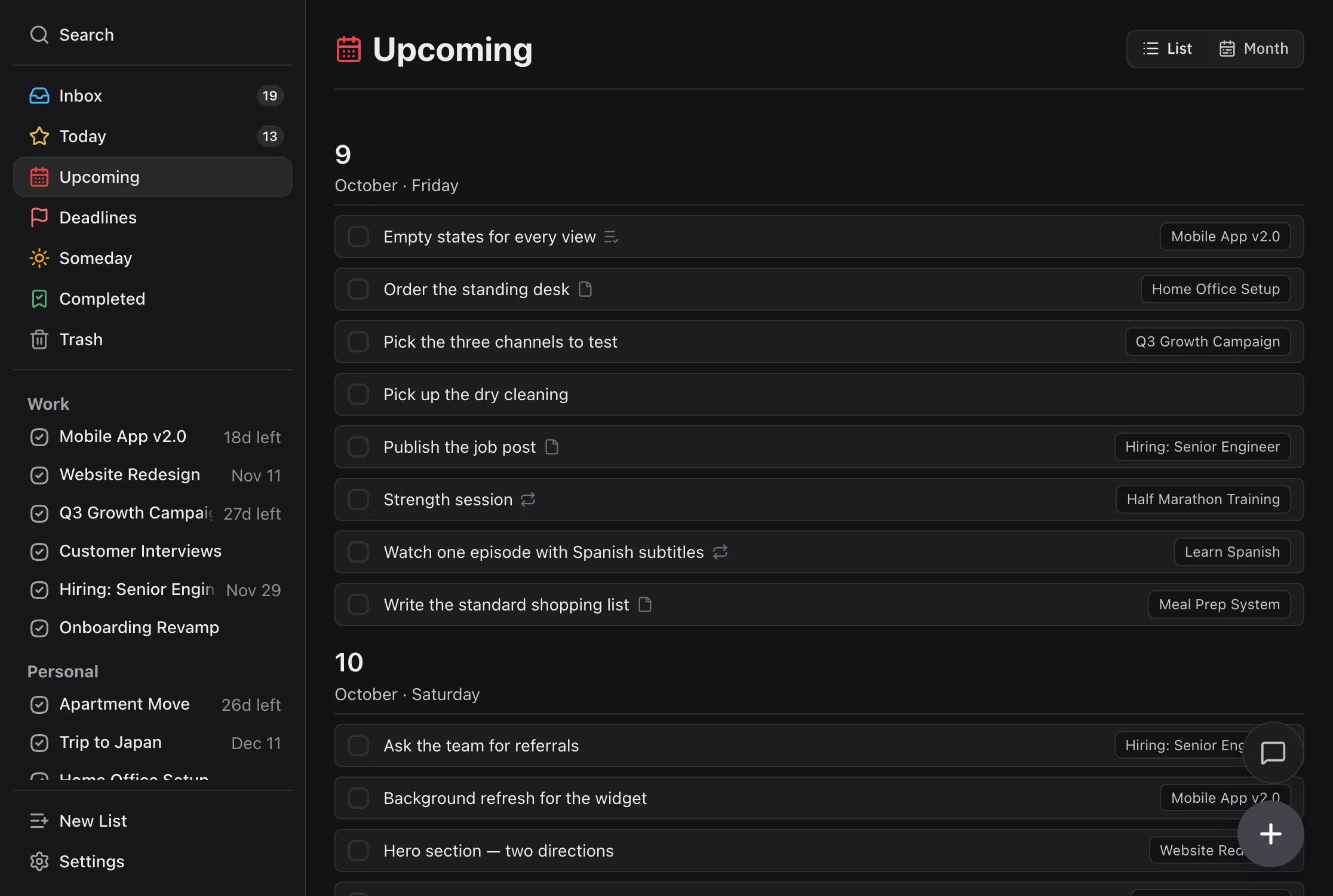
List is the default. It’s free on every plan, on the web and in the iPhone app. Each day after today gets a heading, and its tasks sit under it in the order you put them. Drag a task within a day to reorder it, or under another day to move it there. Anything due today or earlier lives in Today instead, which is where overdue work belongs on a list.
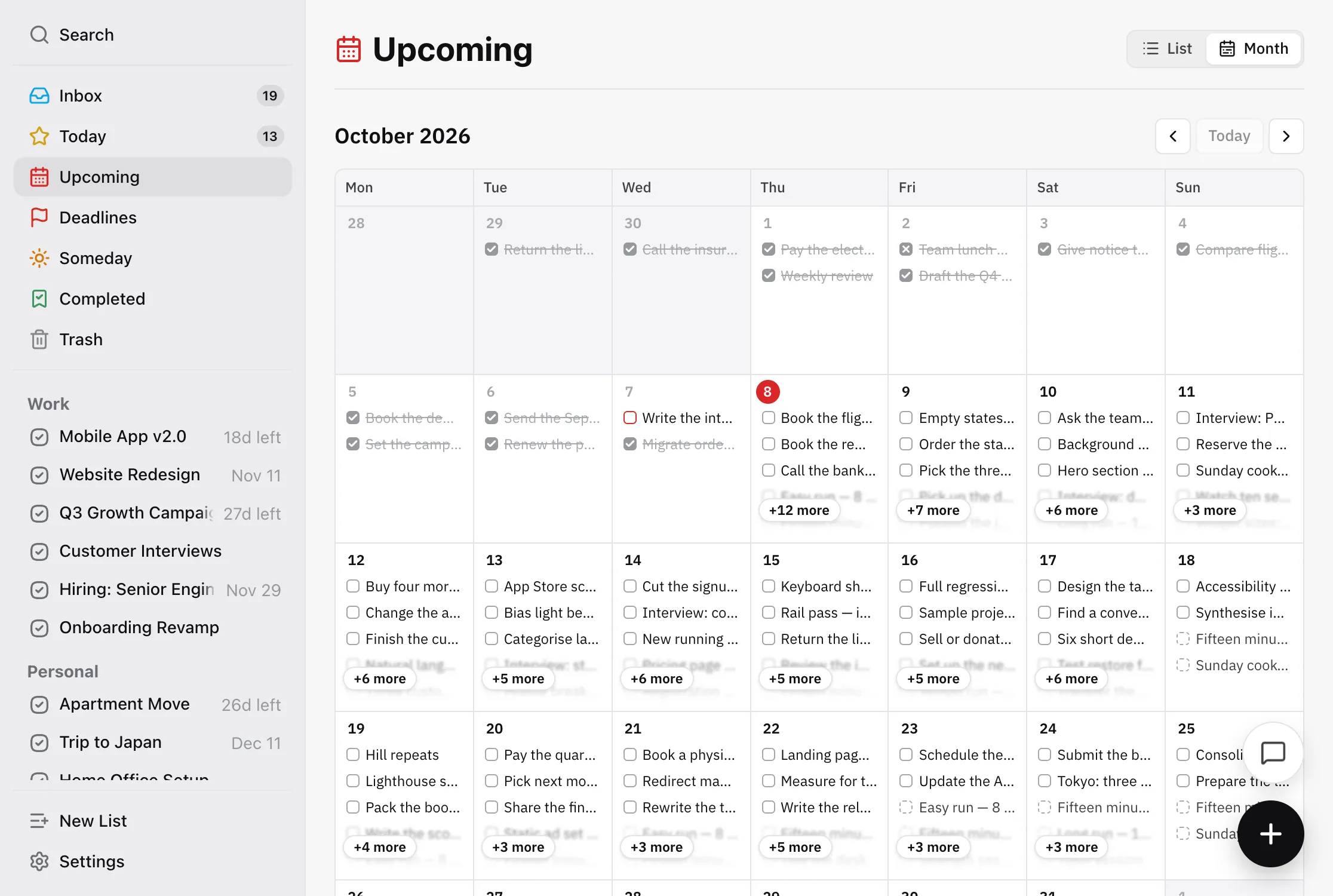
Month is a calendar grid of the whole month, past days included. It’s a Premium layout in the web app. On the free plan the Month button has a small Premium mark and opens the upgrade dialog instead of switching. Everything the list shows stays free.
What a day on the month grid shows
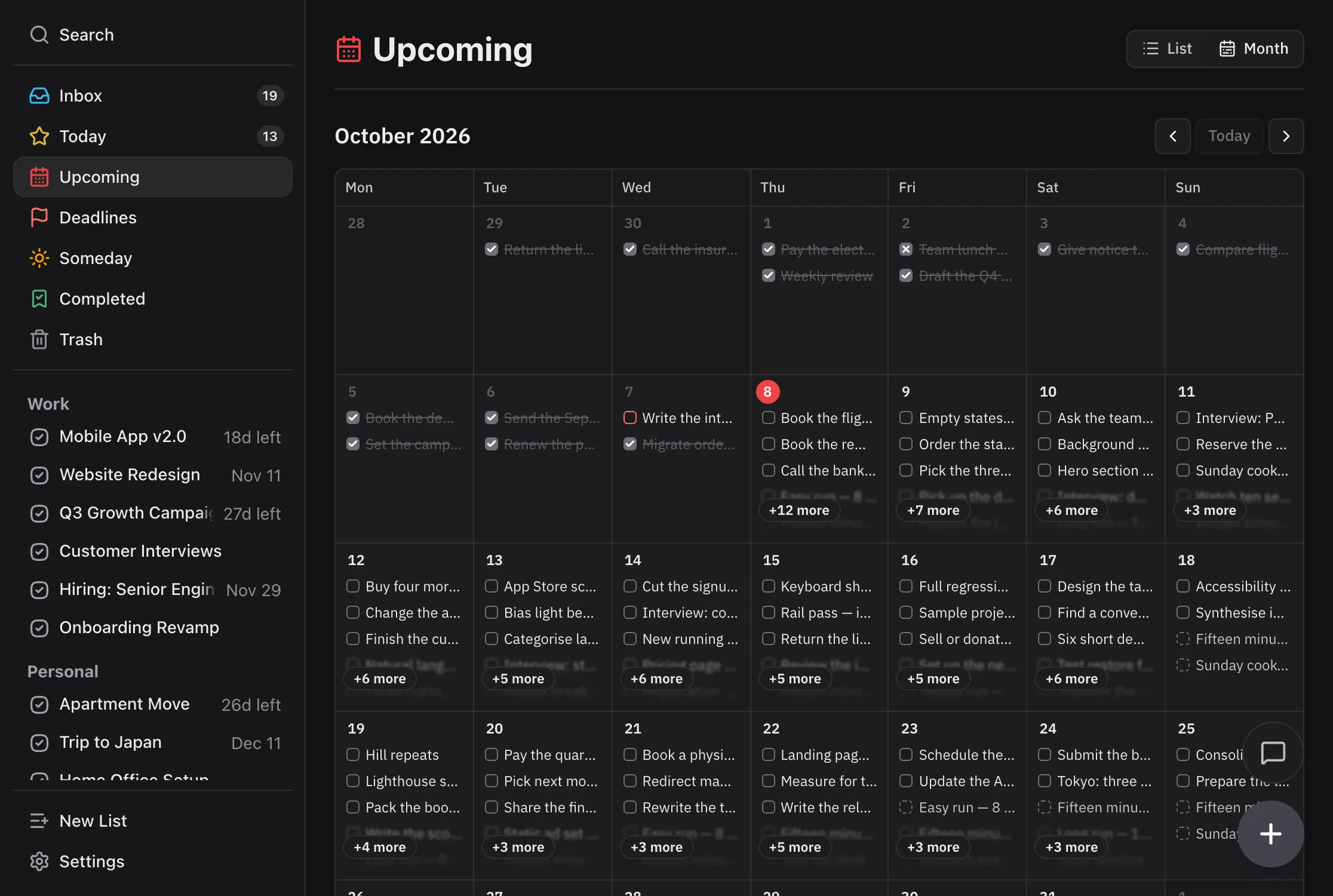
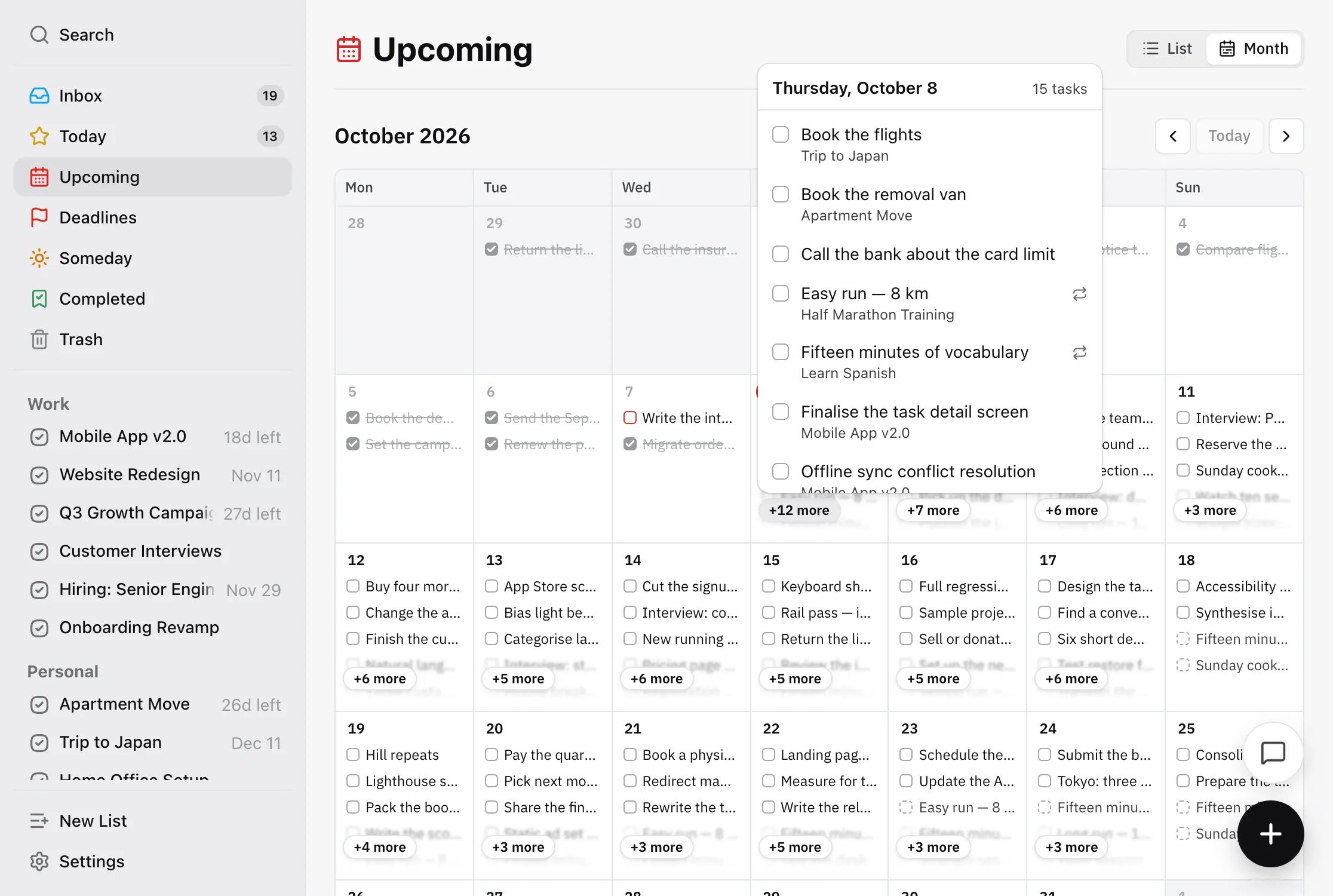
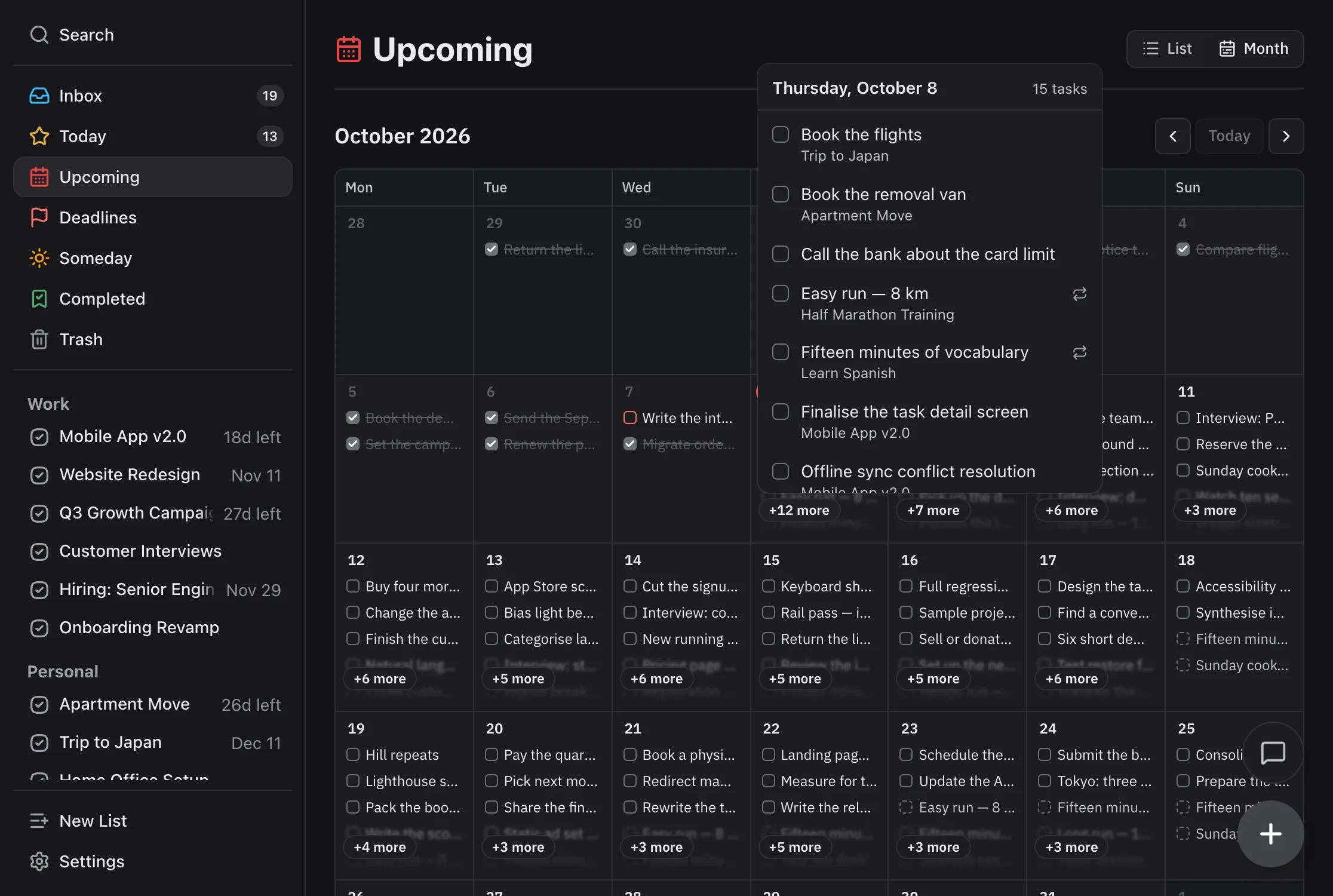
A day lists its open tasks first, in your order, then its coming repeats, then whatever was completed or cancelled on it. A cell has room for three rows. The rest wait behind a “+N more” button that opens the whole day, with each task’s project and reminder time.
An open task has an empty box. If it’s overdue, it stays on the day it was planned for and gets a red box instead of sliding onto today. On a month view that’s the useful version: you can see the interview guide was meant for Wednesday, not only that it’s late.
Finished work stays where it happened. A completed task gets a check and a cancelled one gets a cross, and both are struck through on the day they were planned for. Page back through earlier months and the grid reads as a record of what you actually did. Premium keeps the whole history, so nothing drops off the back of the calendar.
Moving work between days
With a mouse or trackpad, drag an open task onto another day. Only today and later days take the drop, and past days dim while you drag, because you can’t plan work for yesterday. Dropping changes the start date and nothing else. The reminder time comes with the task.
If a task has only a deadline, dropping it gives it a start date on that day and leaves the deadline where it was. That’s the two-date model working as intended: one date for when you’ll look at the work and one for when it’s due. There’s more at start dates and deadlines.
Completed and cancelled tasks don’t move. They’re the record of that day, so to move one you reopen it and then drag it. You can also drag a task straight out of a “+N more” list, which gets out of the way as soon as you pick the task up, or drop it on Today or on a project in the sidebar.
Repeating tasks, shown before they happen
A repeating task in TaskPocket is one task whose date rolls forward when you finish it, which is why a list shows it once. The month grid goes further. For a repeat that runs on a schedule, like every Monday, the 1st of the month or the last weekday, it works out the coming dates and puts each one on its day with a dashed box.
It only does this for scheduled repeats. A repeat that counts from the day you finish it, say every three days after the last one, has no next date until you finish the current one. So the calendar shows nothing ahead for it. A guess would move the moment you checked the task off. The difference has a name, the recurrence anchor, and recurring tasks covers the whole repeat engine.
The preview stops where the series stops. A repeat set to end after five times, or on a date, shows nothing past its end. If the current one is overdue, the coming dates start after today. They’re the same dates you’d get by finishing it today.
A future repeat is a preview, not a task, so you can’t tick it off or drag it. Clicking one opens the series’ current task, and that’s where you change the rule or move the date.
How other task apps do a calendar view
Plenty of task apps have a calendar of tasks, and it’s often on the paid plan. The table below only states what each vendor documents. Where a cell says unknown, the vendor doesn’t publish the answer and this site won’t guess.
| Feature | Todoist | TickTick | TaskPocket |
|---|---|---|---|
| A month calendar of your tasks | Yes1 | Yes2 | Yes3 |
| Calendar on the free plan | No4 | Partial5 | No6 |
| A length of time on a task | Yes7 | Yes8 | No9 |
| Future repeats shown on their days | Unknown | Unknown | Yes10 |
| Calendar events next to your tasks | Unknown | Unknown | No11 |
- Called the calendar layout.
- Called Calendar View.
- The Month layout of Upcoming, in the web app.
- The calendar layout is listed as a Pro addition. The free Beginner tier has list and board layouts.
- Listed as Basic on the free plan and Unlimited on Premium.
- The List layout is free. Month is Premium.
- Task duration is a Pro feature.
- Duration, with a start and end time, is Premium-only.
- Dates only. A time on a task is a reminder, not a slot.
- Scheduled repeats only, not repeats counted from completion.
- No events and no calendar sync.
Todoist puts its calendar layout on Pro, the same way TaskPocket puts the month grid on Premium, so neither one gives you a calendar for free. TickTick does, in a basic form, and adds time ranges on tasks with Premium. If you plan your day in hours, or you want the calendar at the centre of your planning, TickTick is built for that and TaskPocket isn’t. The rest of the differences are in TaskPocket vs TickTick.
What this doesn't do
- The month grid is Premium. A free account gets the List layout: the same upcoming days, without the grid or the past weeks.
- It’s web only. The iPhone app has the Upcoming list with drag to reschedule, but not the month grid.
- It shows tasks and nothing else. You can’t add calendar events or subscribe to a Google or Apple calendar, and there’s no sync in either direction.
- It works in days, not hours. There’s no week view, day view or time-of-day grid. A time on a task is a reminder, not a slot.
- You see one month at a time and move with the arrows. There’s no year view and no endless scroll.
- Dragging on the grid needs a mouse or trackpad. On a phone-sized screen each day shows dots, and a tap opens that day’s list, without drag.
- Completed and cancelled tasks don’t move. Reopen one first if it really belongs on another day.
- A repeat counted from completion shows no future dates. A future repeat can’t be ticked off or dragged, and the preview only reaches two years ahead.
Questions people ask
Does TaskPocket have a calendar view?
Yes, on Premium: the Month layout of the Upcoming view puts your tasks on a month grid in the web app. The free List layout shows the same upcoming tasks grouped by day.
Is the calendar view free?
No, the month grid is Premium. Upcoming itself is free in the List layout, with drag to reschedule on the web and on iPhone. On the free plan the Month button opens the upgrade dialog.
Does the calendar show recurring tasks?
Yes. Every repeat that runs on a schedule shows its coming dates, each with a dashed box on its day. A repeat that counts from the day you finish it shows only its current date, because the next one doesn’t exist until you finish this one.
Can I see completed tasks on the calendar?
Yes. Completed tasks have a check and cancelled ones a cross, struck through on the day they were planned for. Page back to earlier months to see them. Premium keeps the whole history.
Does it sync with Google Calendar or Apple Calendar?
No. The grid shows your TaskPocket tasks and nothing else. It has no calendar events, can’t import from a calendar, and doesn’t publish a feed a calendar app could subscribe to.
Is the calendar view in the iPhone app?
No, the month grid is only in the web app. The iPhone app has the Upcoming list, grouped by day, with drag to reorder and reschedule. The web app also opens in Safari on an iPhone, where each day shows dots and a tap opens its list.
Sources
- Todoist — pricing (list and board layouts on Beginner, calendar layout and task duration on Pro)checked 2026-08-23
- TickTick — Premium comparison (Calendar View "Basic" on free, "Unlimited" on Premium)checked 2026-09-01
- TickTick Help — Duration, with a start and end time, as a Premium featurechecked 2026-09-01
The list layout is free. The month calendar is Premium, with a 7-day free trial on the monthly and yearly plans if you haven’t subscribed before.
Start my list — free