

What TaskPocket does, feature by feature

Each feature has its own page: how it works, the edge cases, and what it doesn’t do. Anything that hasn’t shipped isn’t on this list.

Start date free, deadline on Premium

Start dates and deadlines

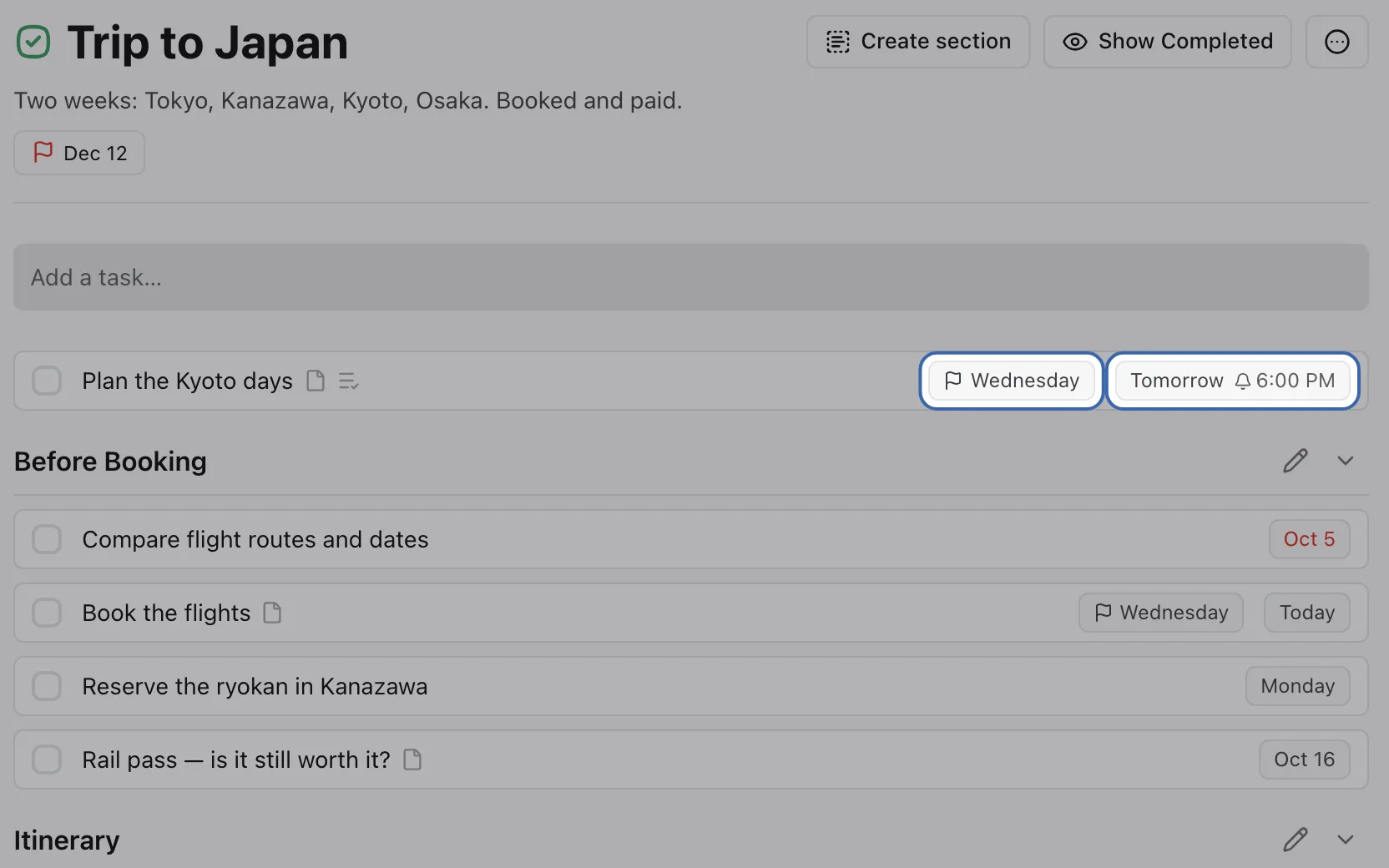
A start date says when you’ll pick a task up, and it decides what shows in Today. A deadline says when the task is actually due, and it stays out of your day until then. One task can carry both, so “start on the 12th, done by the 30th” is two fields rather than a note to yourself.
Read the full page: Start dates and deadlines

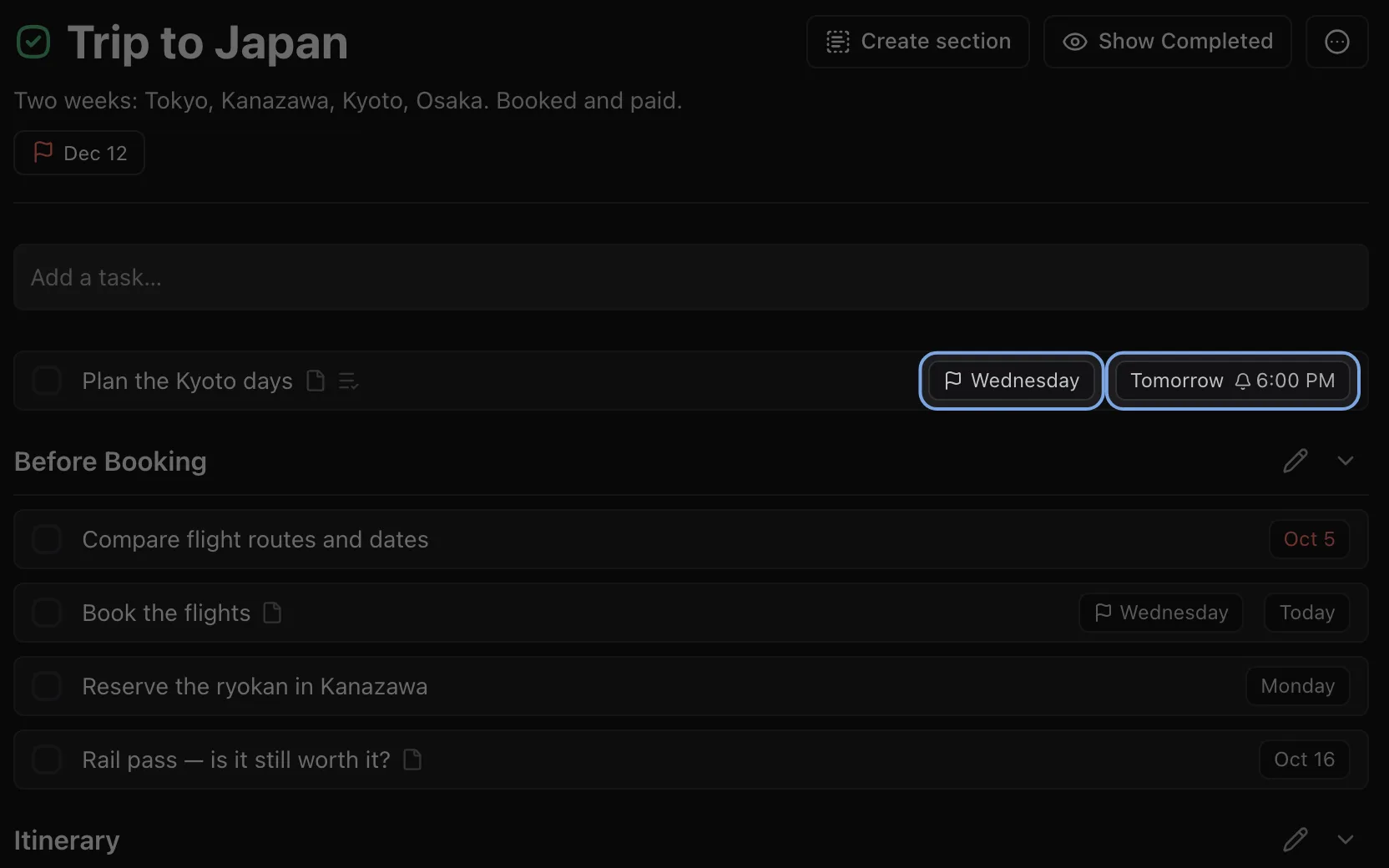
A task row in the Trip to Japan project with two chips highlighted: a flag for its deadline on Wednesday, and its start date, tomorrow, with a 6:00 PM reminder.A task row in the Trip to Japan project with two chips highlighted: a flag for its deadline on Wednesday, and its start date, tomorrow, with a 6:00 PM reminder.

Free on every plan

Recurring tasks

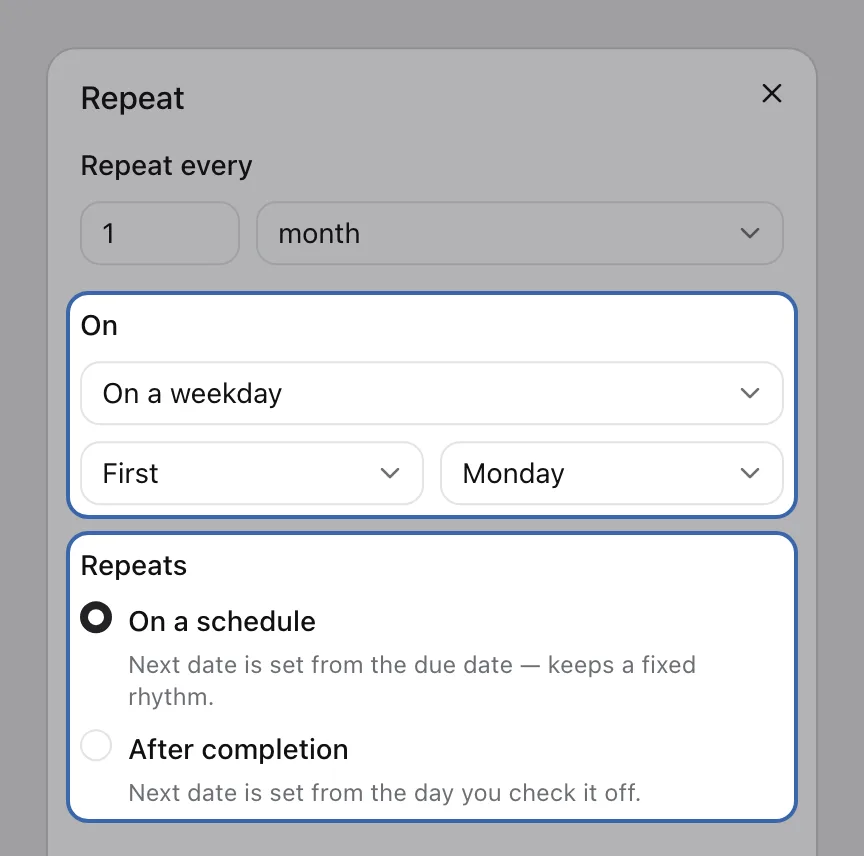
Repeat every other week, on the first Monday of the month, or on its last day. Count the next date from the schedule or from the day you actually finish, and stop on a date or after a number of times. The whole repeat engine is on the free plan.
Read the full page: Recurring tasks

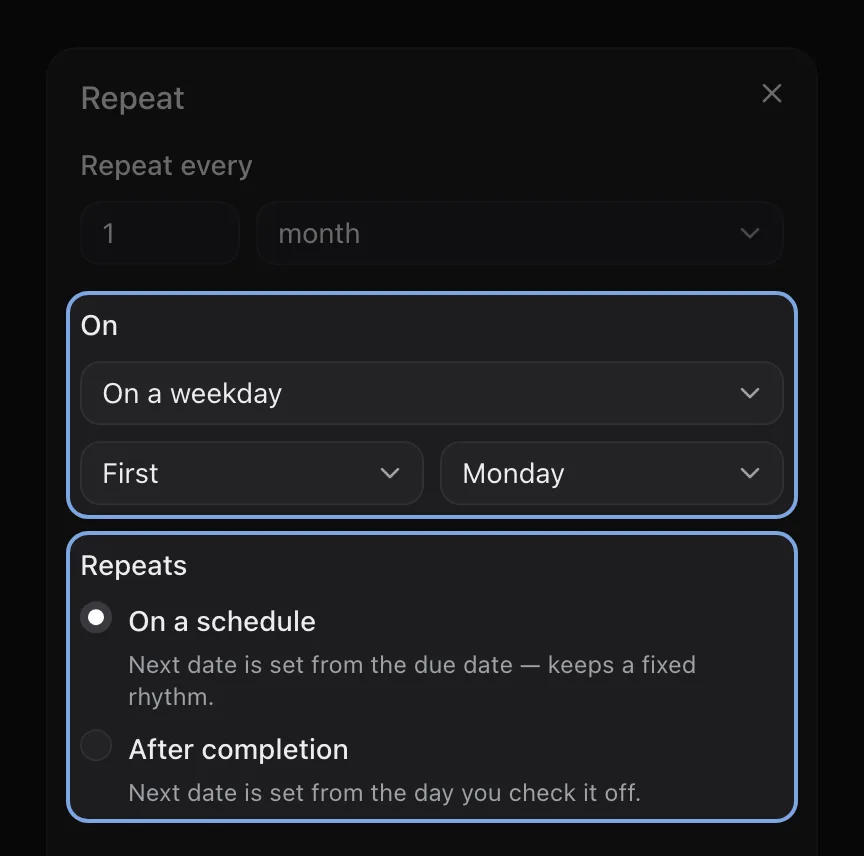
The Repeat editor with two parts highlighted: monthly on the first Monday, and the choice between repeating on a schedule or after completion.The Repeat editor with two parts highlighted: monthly on the first Monday, and the choice between repeating on a schedule or after completion.

Free on every plan

Natural-language capture

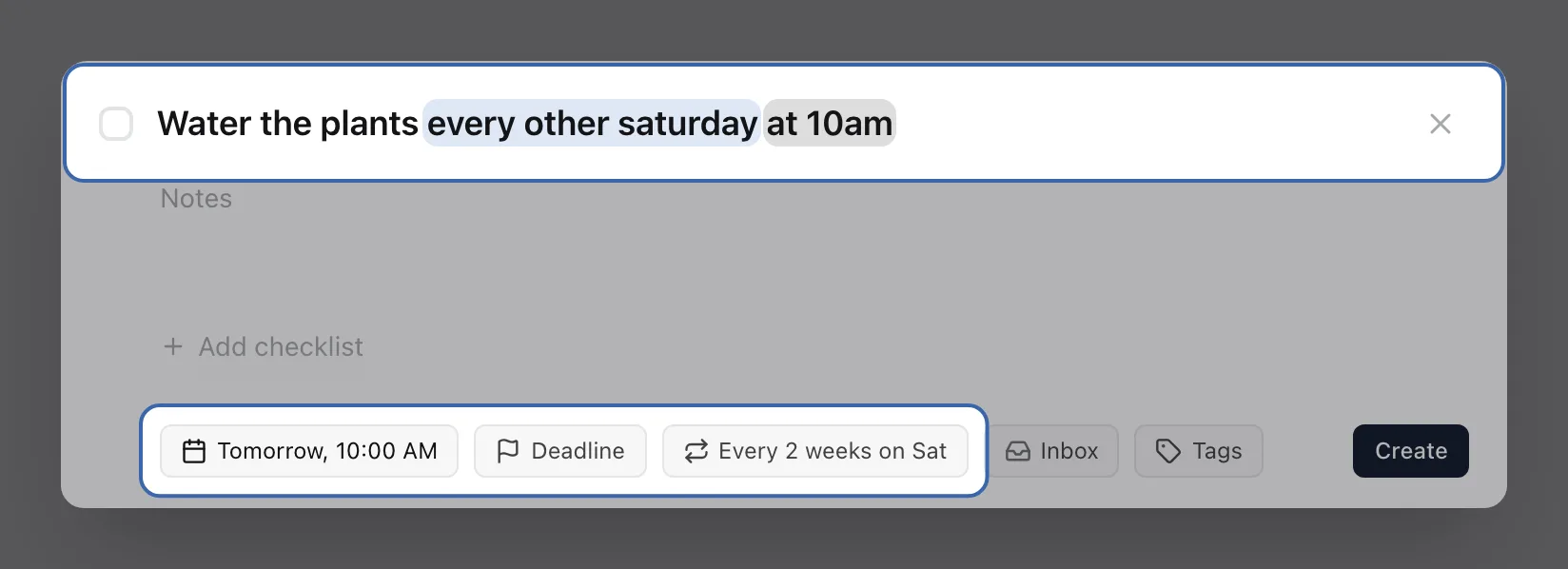
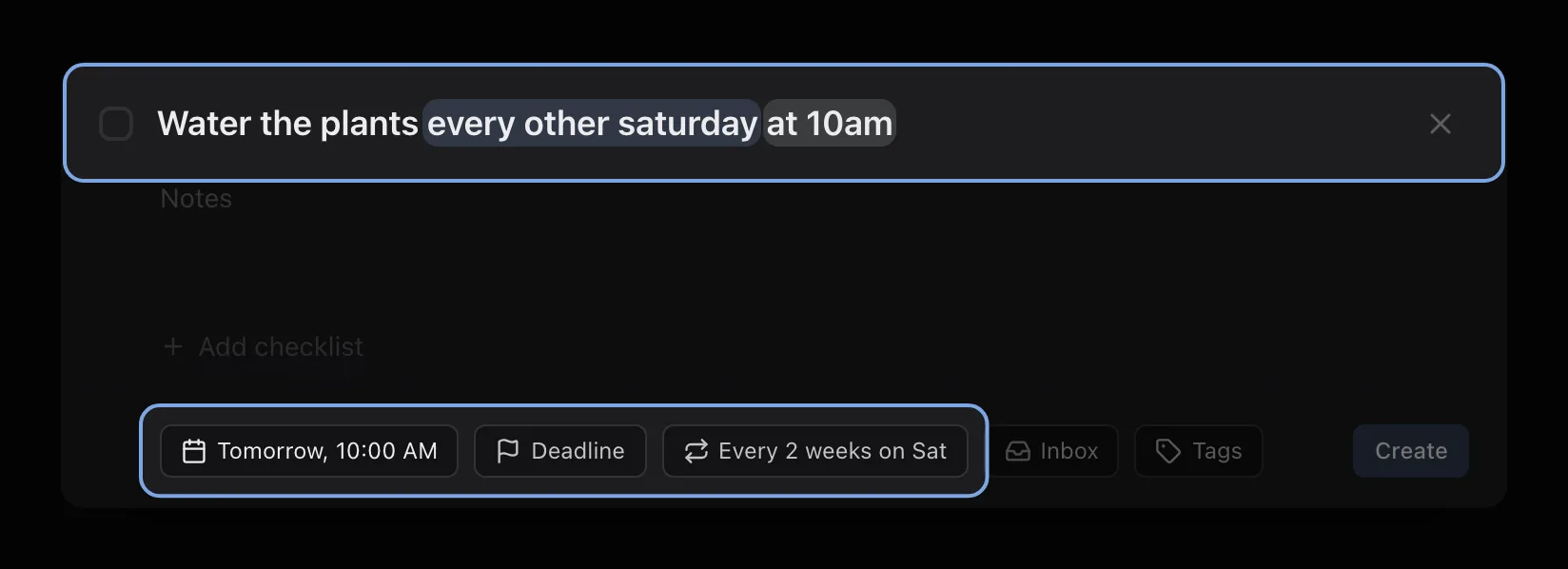
Type “water the plants every other saturday at 10am” and TaskPocket sets the start date, the repeat and a 10:00 reminder, then takes those words out of the title. It’s a fixed grammar running on your device, not a language model, so the same sentence always gives the same task.
Read the full page: Natural-language capture

Quick add with the title “Water the plants every other saturday at 10am”. The date and repeat words are highlighted in the title, and the chips below read “Tomorrow, 10:00 AM” and “Every 2 weeks on Sat”.Quick add with the title “Water the plants every other saturday at 10am”. The date and repeat words are highlighted in the title, and the chips below read “Tomorrow, 10:00 AM” and “Every 2 weeks on Sat”.

Free on every plan

Reminders

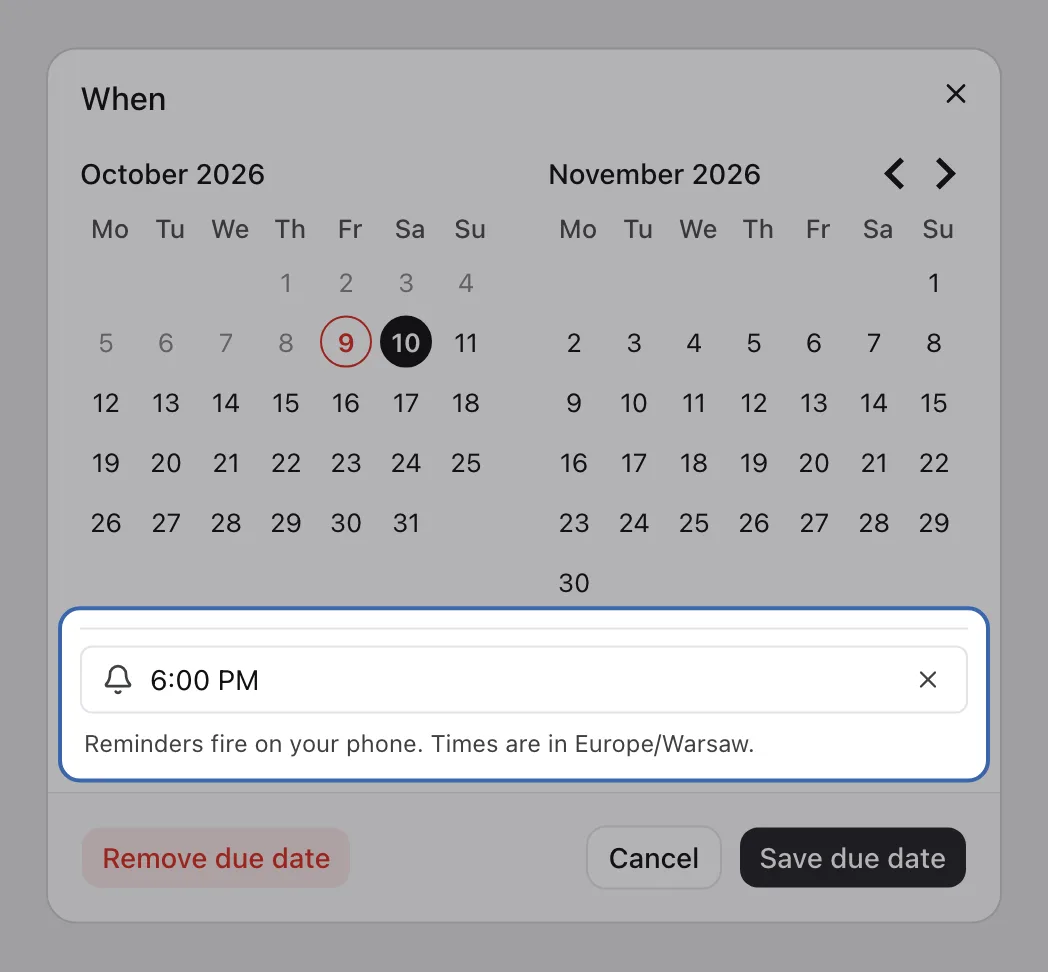
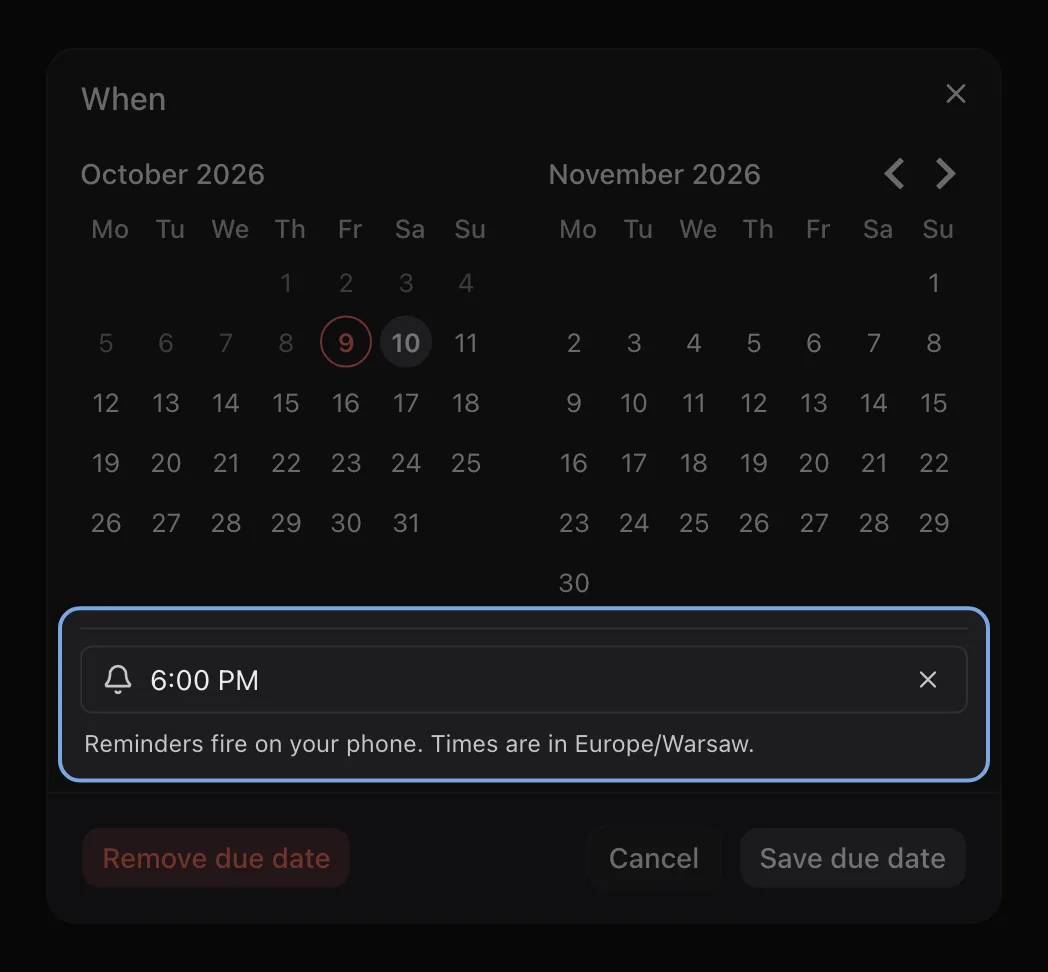
Put a time on a task and you get a notification at that time. In a browser it arrives with the tab closed, and on iPhone it comes as a Time Sensitive notification. One reminder per task, on its start date.
Read the full page: Reminders

The When date picker with the reminder field highlighted: a bell, 6:00 PM, and a note that times are in the account’s time zone.The When date picker with the reminder field highlighted: a bell, 6:00 PM, and a note that times are in the account’s time zone.

List free, month on Premium

Calendar view

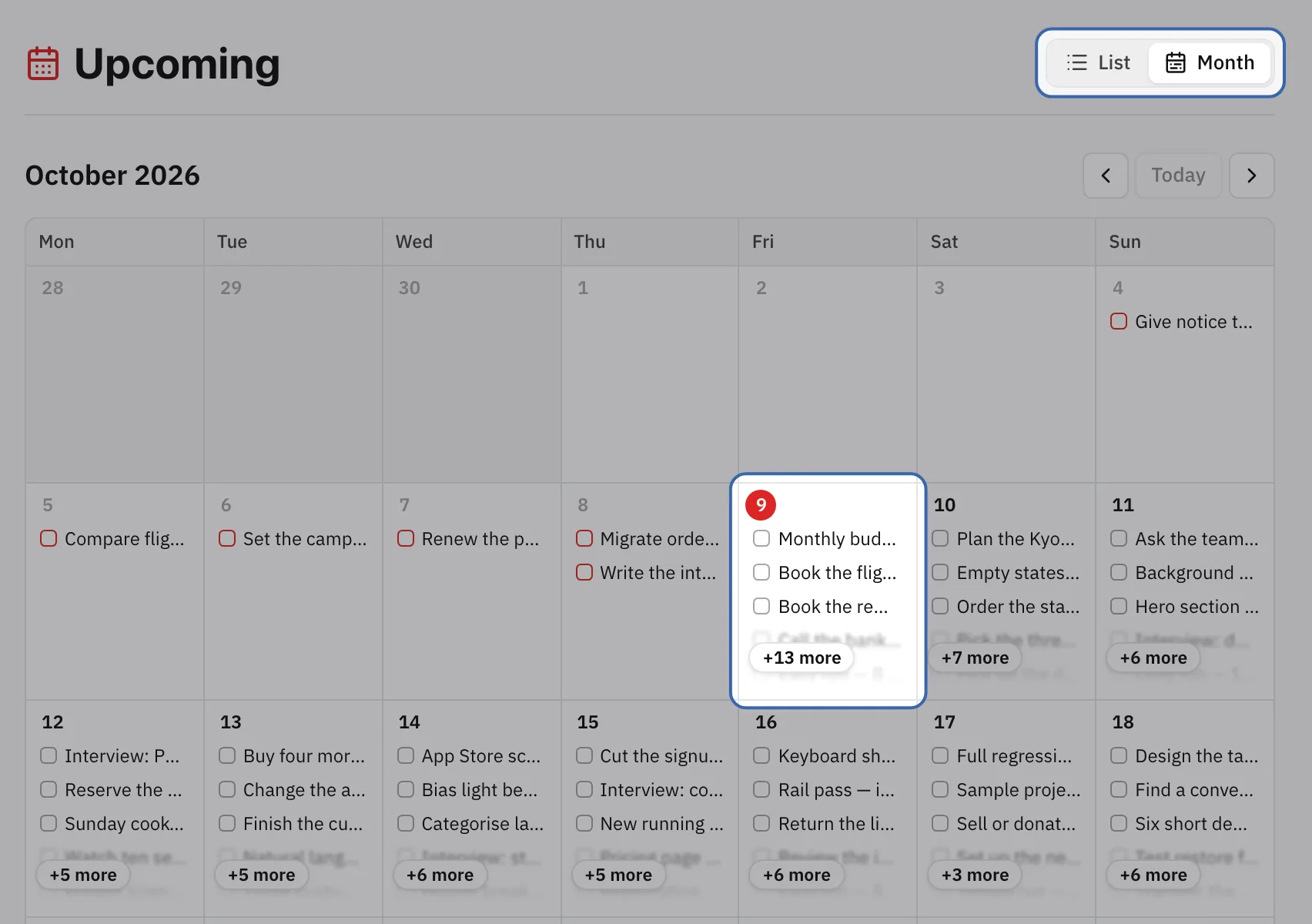
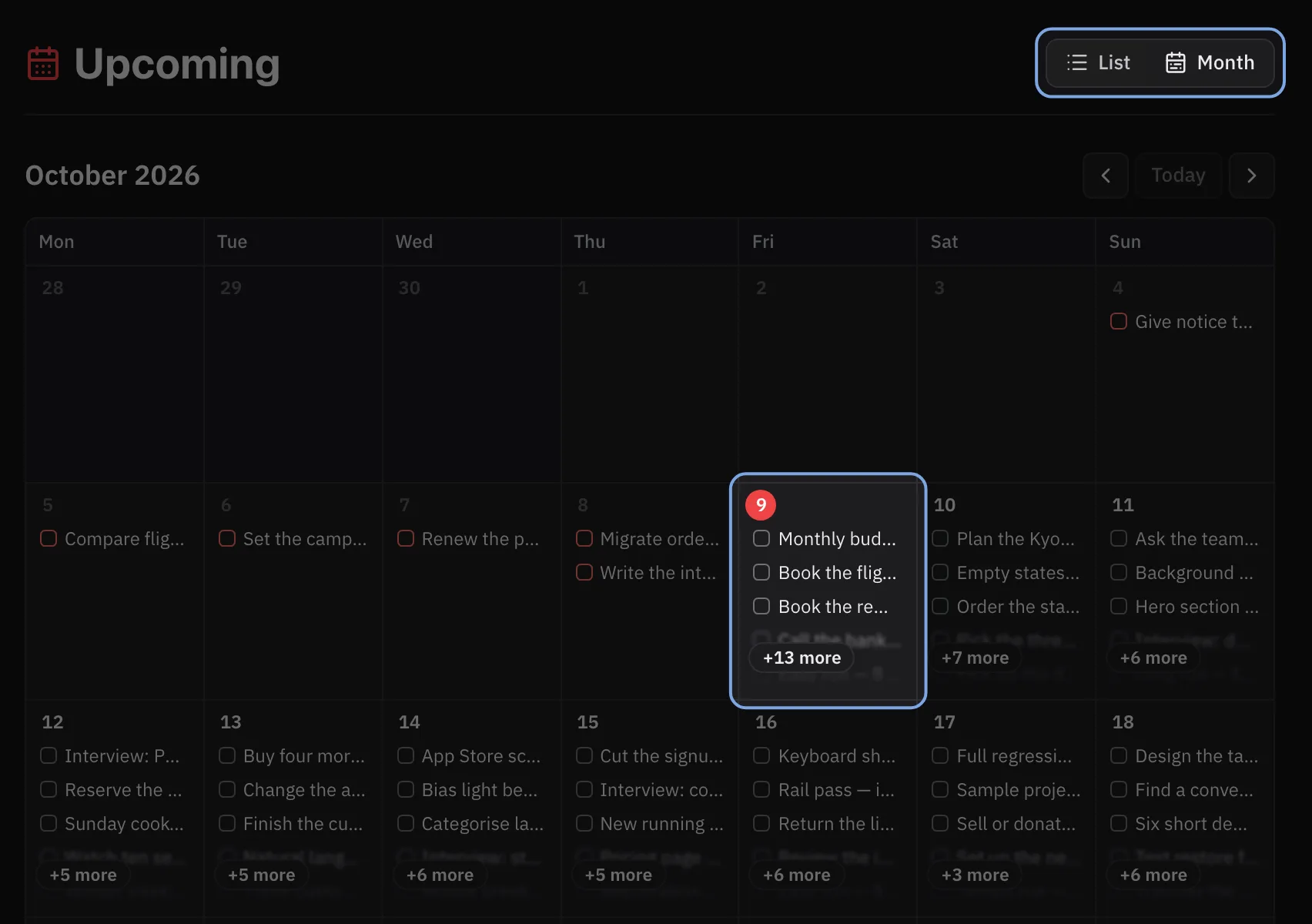
Upcoming lists your dated tasks by day. Switch it to Month and the whole month is a grid, with overdue and finished tasks on their days and future repeats on theirs. Drag a task to another day to move it. The month grid is Premium and in the web app only.
Read the full page: Calendar view

Upcoming in the Month layout for October 2026, with the List and Month switch highlighted and today’s cell ringed.Upcoming in the Month layout for October 2026, with the List and Month switch highlighted and today’s cell ringed.

Free on every plan

Notes and checklists

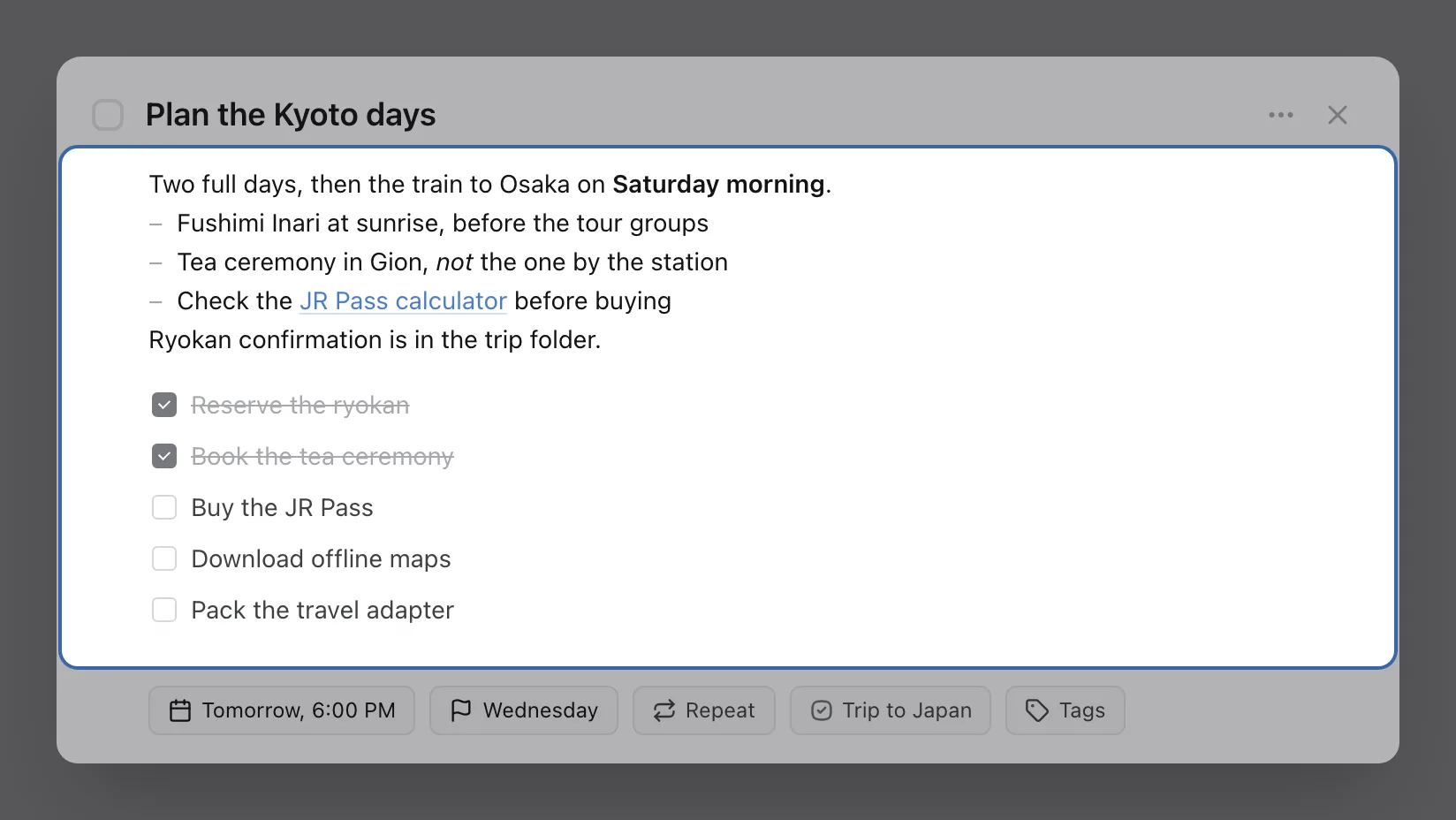
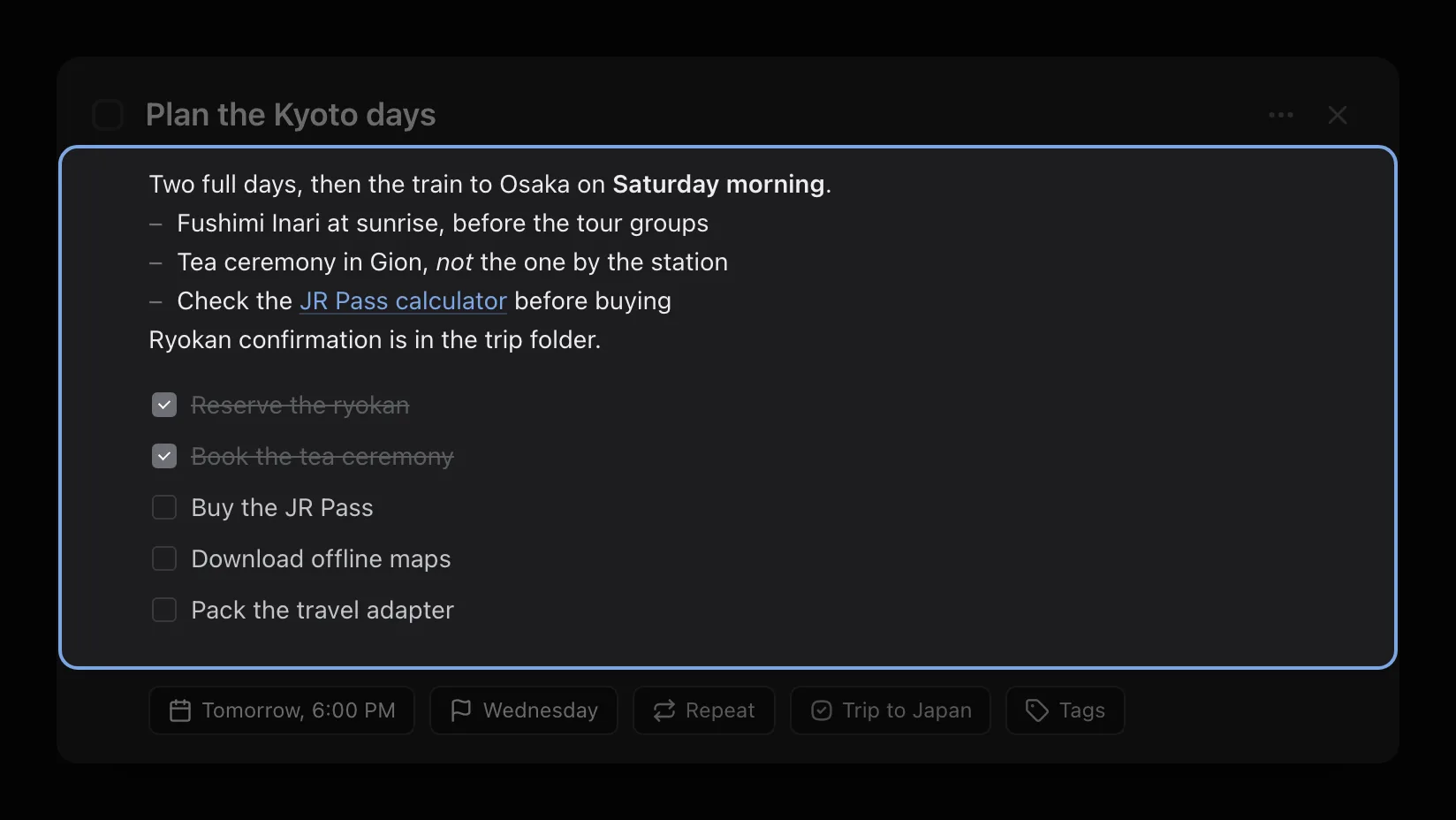
Click a task and it opens in one window: formatted notes, a checklist, and chips for its dates, repeat and project. When a repeating task comes round again, its checklist comes back unticked.
Read the full page: Notes and checklists

The window for the task “Plan the Kyoto days”, with its notes and its five-item checklist highlighted. Two checklist items are ticked.The window for the task “Plan the Kyoto days”, with its notes and its five-item checklist highlighted. Two checklist items are ticked.

Free up to 100 MB · 5 GB on Premium

File attachments

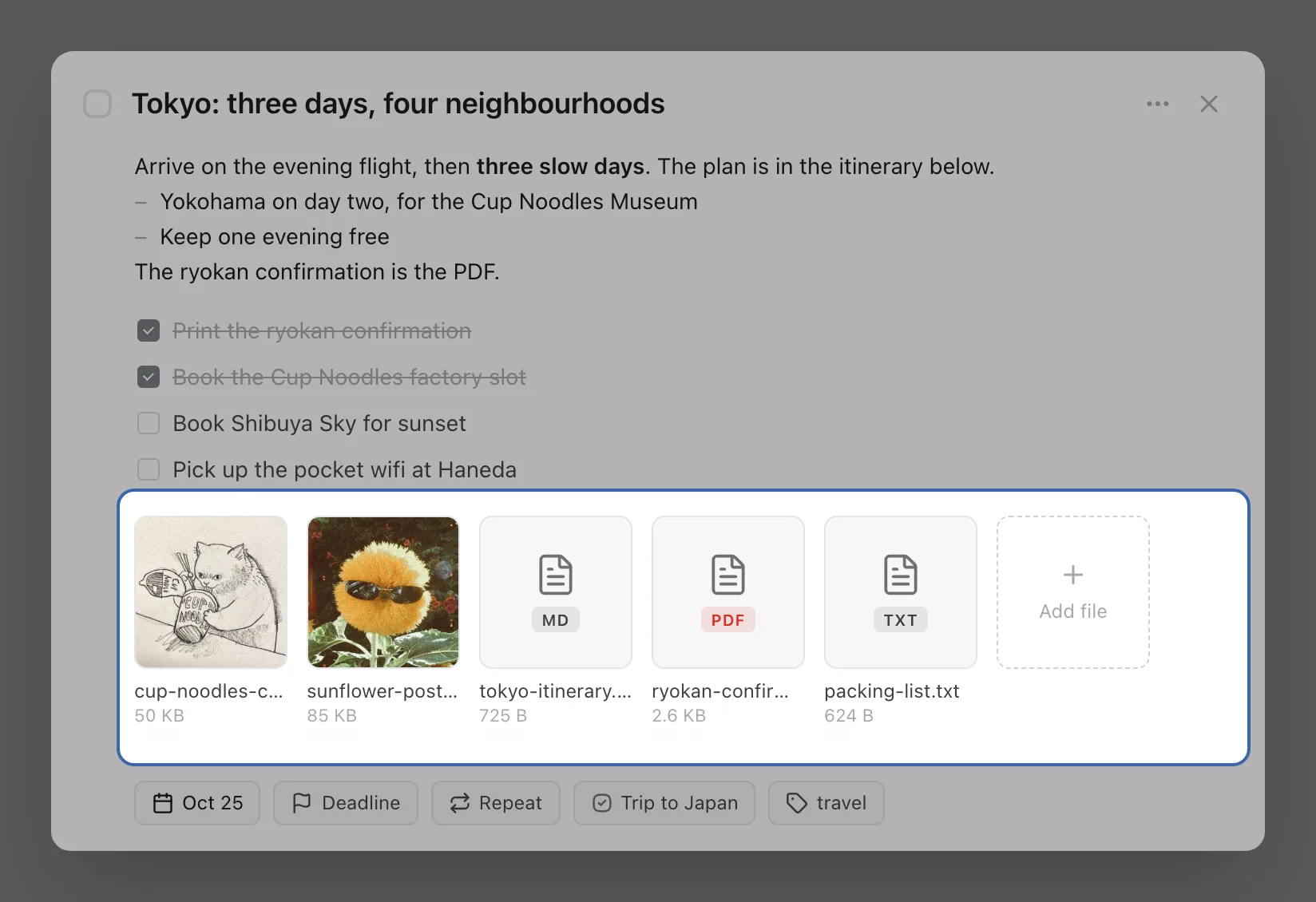
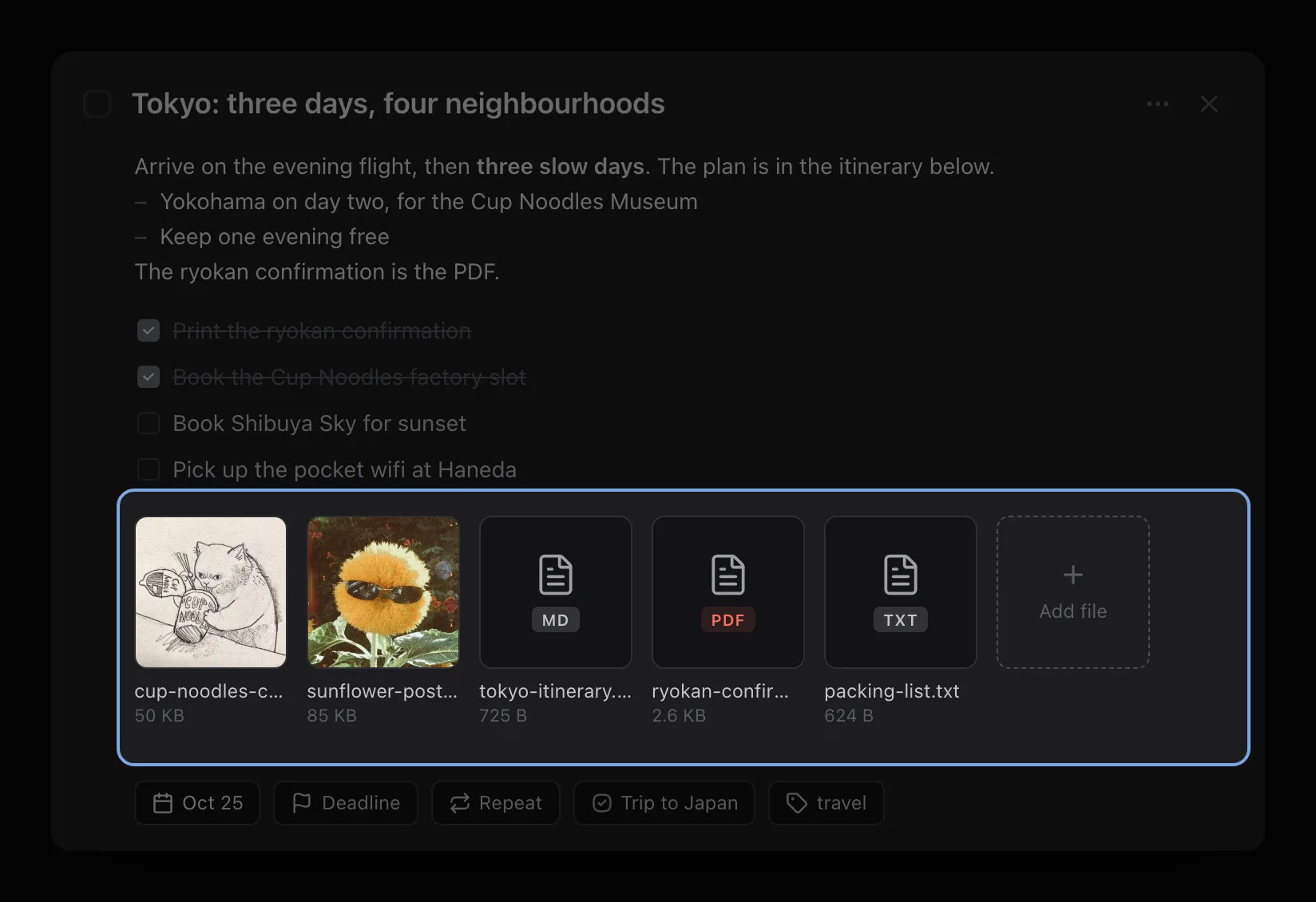
Put the booking confirmation, the photo of the form and the itinerary on the task they belong to. Pictures, text and Markdown open in the app, and a PDF opens in the browser. Free gives you 10 MB a file and 100 MB in total; Premium gives you 100 MB a file and 5 GB.
Read the full page: File attachments

The task “Tokyo: three days, four neighbourhoods” with its five files highlighted: a pencil sketch, a photo, a Markdown itinerary, a PDF and a text packing list.The task “Tokyo: three days, four neighbourhoods” with its five files highlighted: a pencil sketch, a photo, a Markdown itinerary, a PDF and a text packing list.

Free for 5 projects and 2 areas

Projects and areas

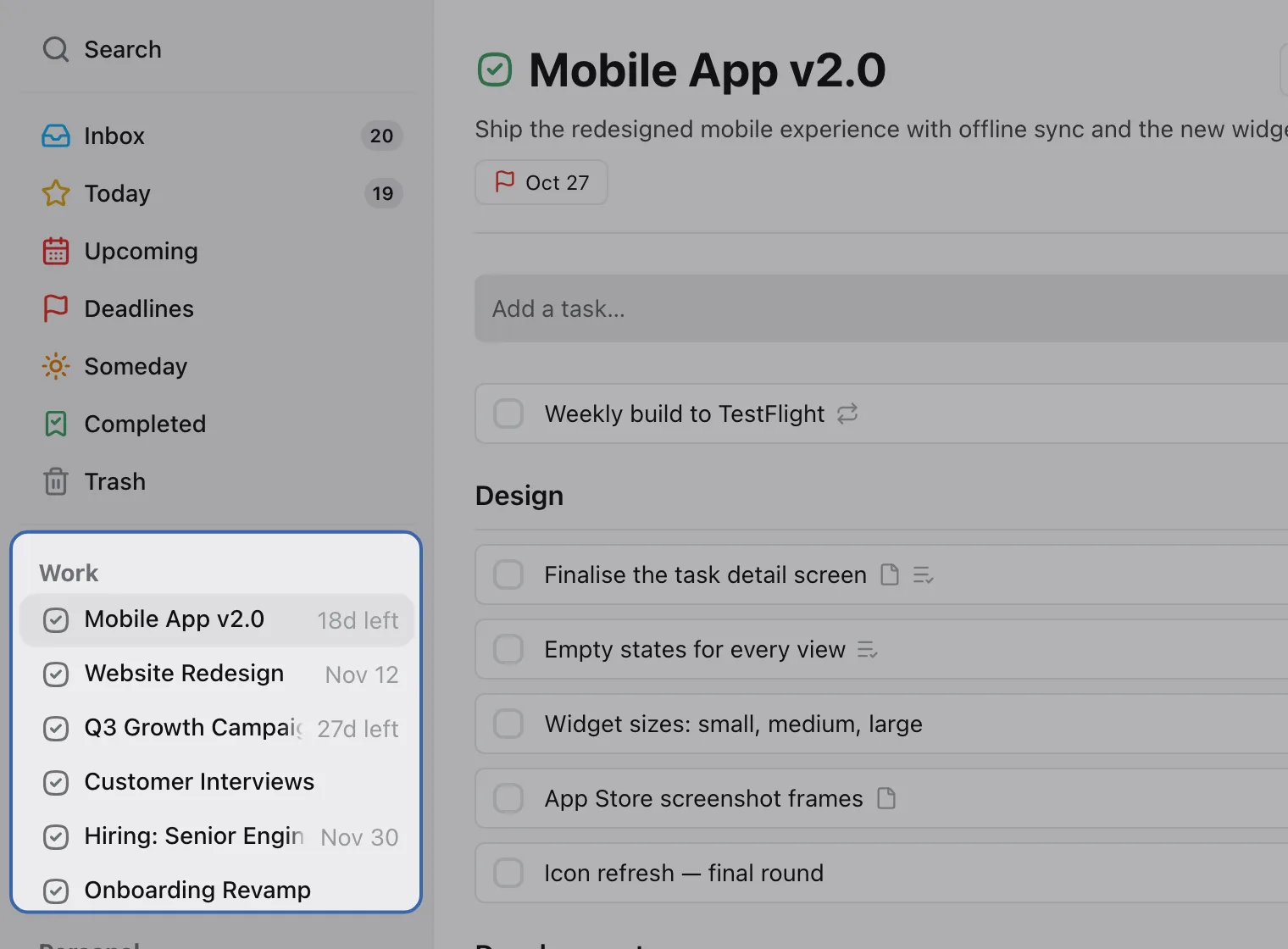
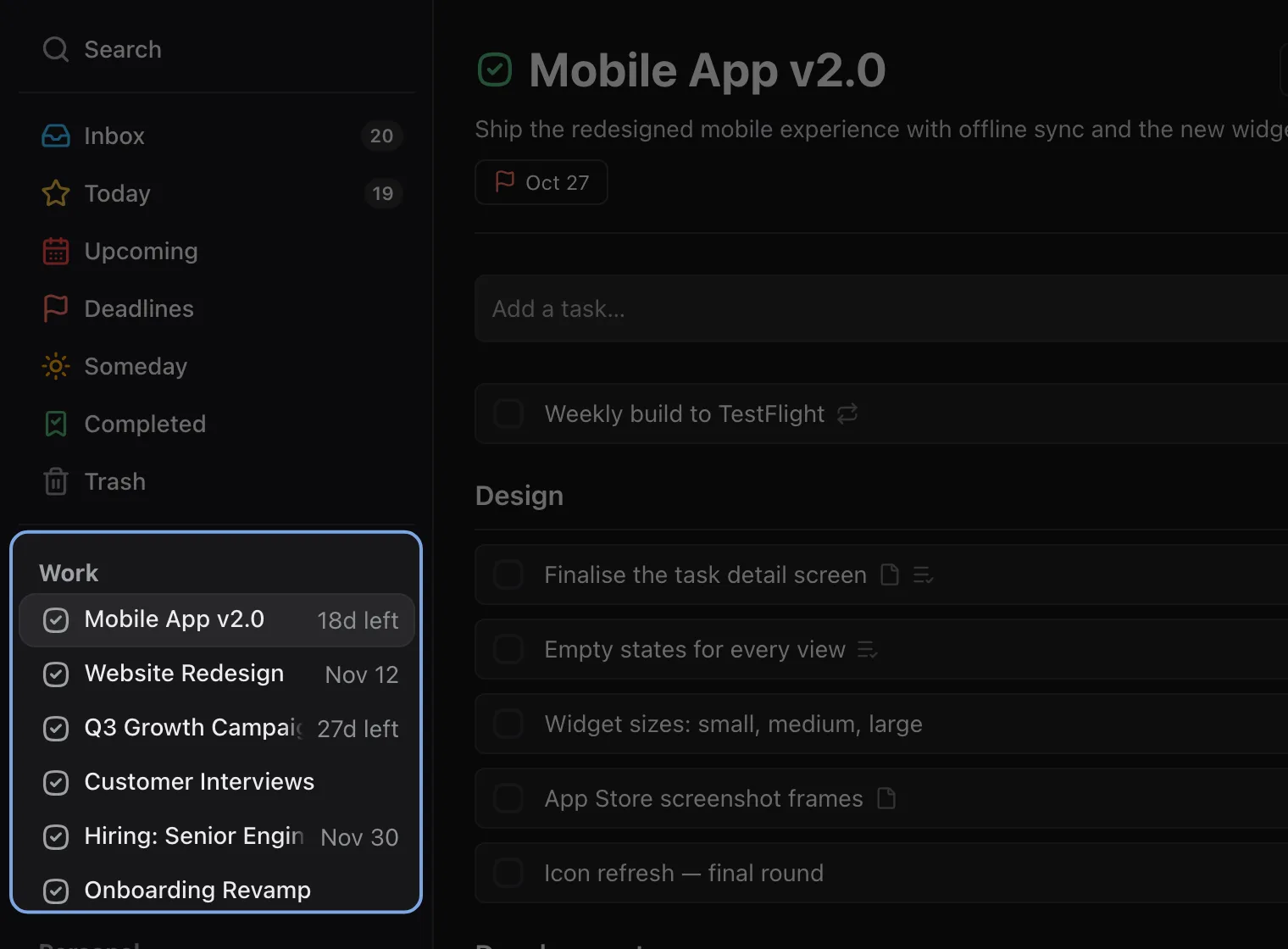
A project is something with an ending, and finishing it keeps its history. An area is a part of your life that doesn’t end, like Work or Home, and it holds your projects. Premium lifts the free plan’s caps on both.
Read the full page: Projects and areas

The sidebar with the Work area highlighted and its six projects under it, next to the open Mobile App v2.0 project.The sidebar with the Work area highlighted and its six projects under it, next to the open Mobile App v2.0 project.

Free on every plan

Export your data

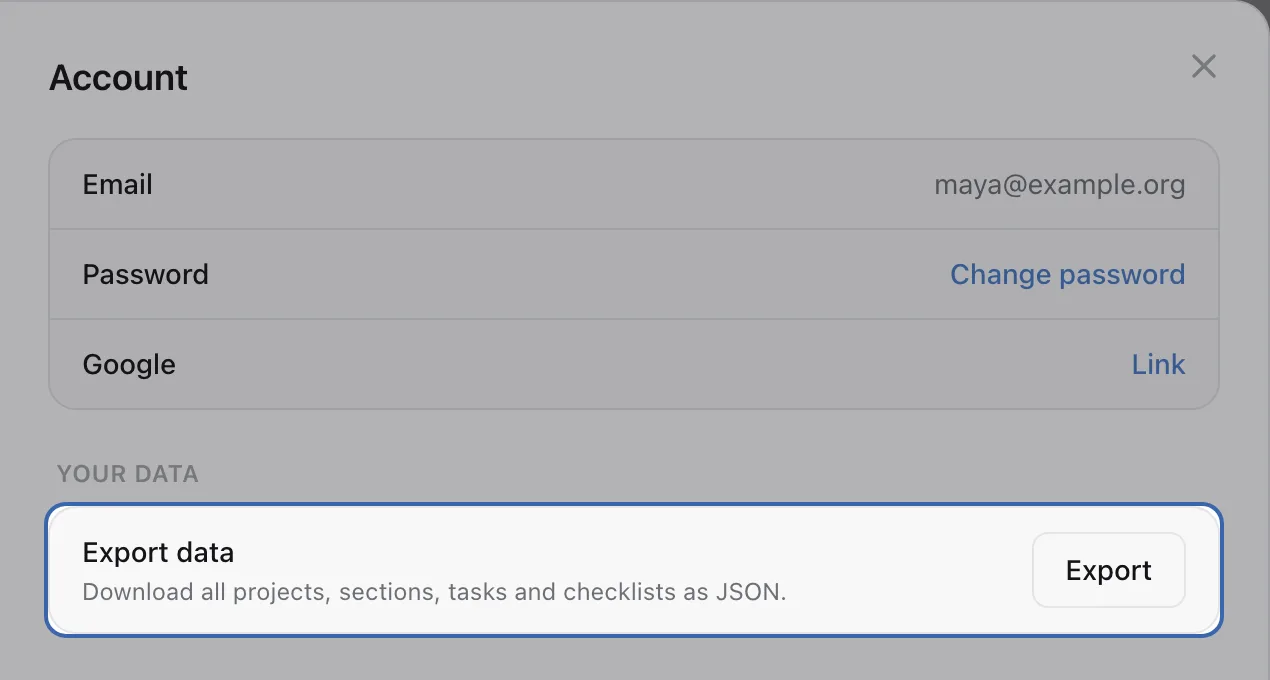
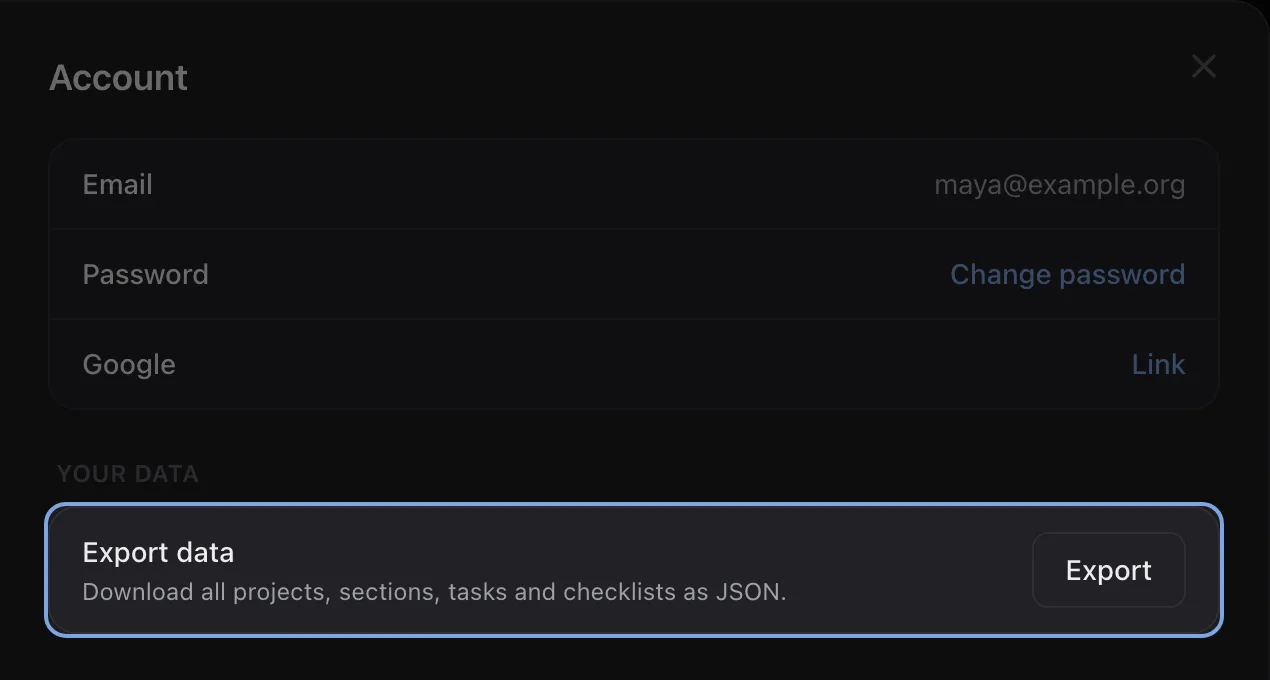
Settings → Account → Export data downloads one JSON file with your projects, sections, tasks, checklists, notes and completed history. There is no request form and no waiting period. It’s a readable archive, not a backup you can import again.
Read the full page: Export your data

The Account page in Settings, with the Export data row and its Export button highlighted.The Account page in Settings, with the Export data row and its Export button highlighted.

The free plan has unlimited tasks. No card, no trial clock.

Start my list — free