

A to-do app with file attachments on every task
TaskPocket attaches files to a task, on the web and iPhone: pictures, PDFs, documents, text and Markdown files, up to 20 a task. Pictures, text and Markdown open in the app, and a PDF opens in the browser. Free stores 100 MB at 10 MB a file; Premium stores 5 GB at 100 MB a file.
By Bohdan StefaniukLast updated
Where the files for a task end up
Plenty of tasks come with paper. “Renew the passport” needs a photo that meets the rules and a form you printed once. “Tokyo: three days” needs the ryokan confirmation, the itinerary a friend sent, and the packing list you reuse every trip.
Without a place for them on the task, the files scatter: a downloads folder, an email thread, a photo somewhere in the camera roll. The task says what to do, and the thing you need to do it is three searches away, usually at the moment you have the least time, at a check-in desk or on the phone with someone.
Files sit on the task, under the checklist
Open a task and its files are a row of square tiles under the notes and the checklist. A picture shows a thumbnail. Anything else shows its type, so a PDF, a Markdown file and a text file are told apart at a glance. The name and the size sit under each tile.
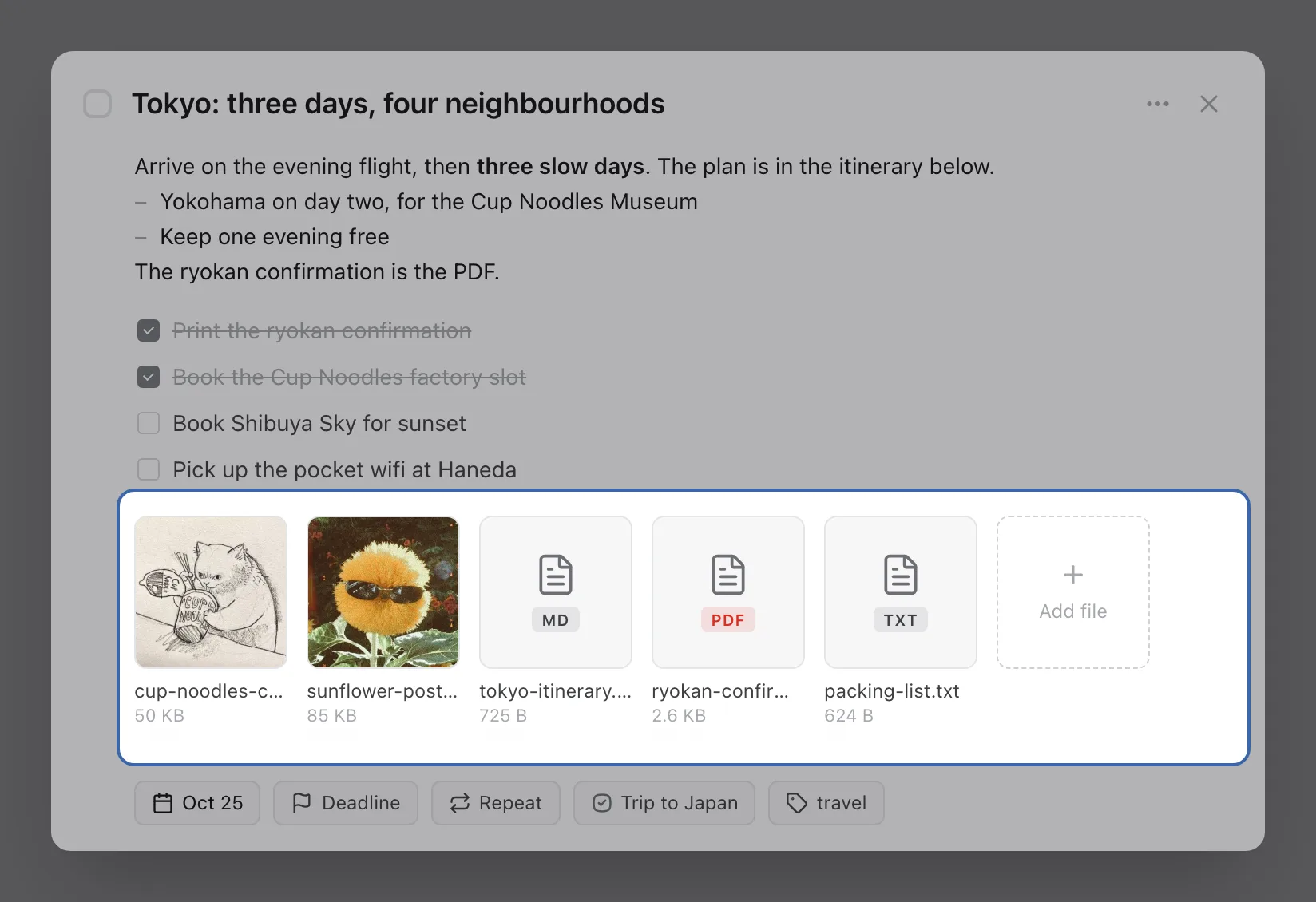
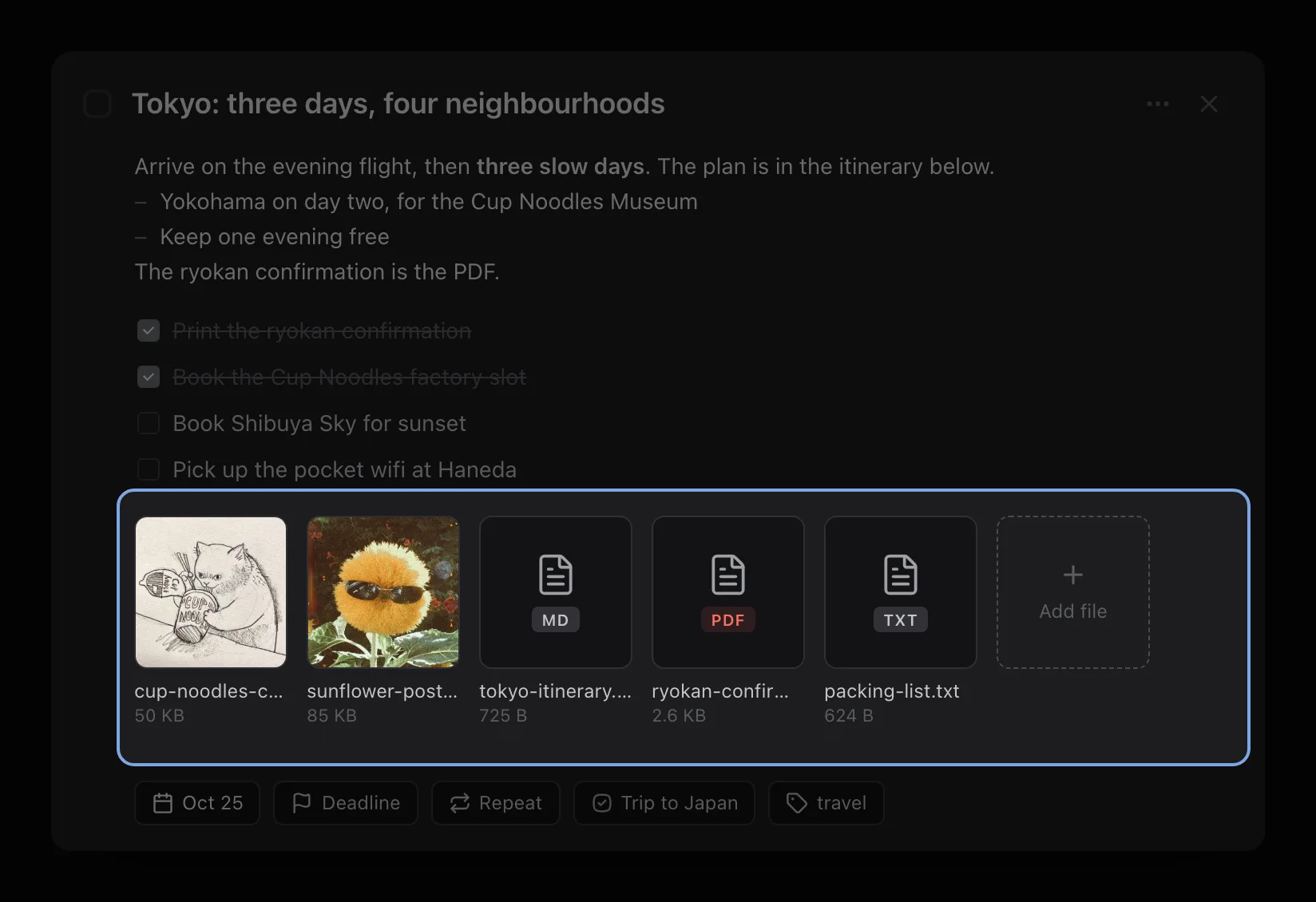
A task holds up to 20 files. In a list, a paperclip after the title tells you which tasks have them, next to the icons for notes and checklists.


Adding a file
In the web app, a task with no files has an “Add attachment” button next to “Add checklist”. Once a task has files, the last tile in the row adds more. You can also drag files from your desktop onto the open task, and you can add files while you write a new task, before it is saved.
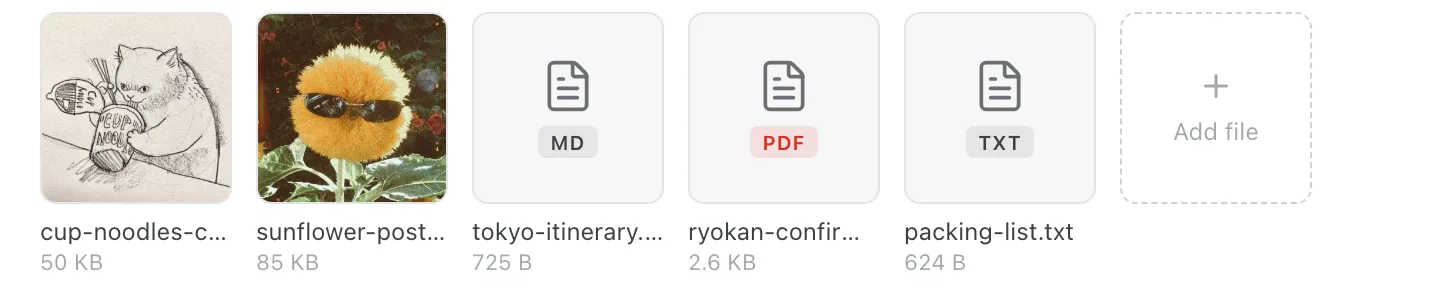
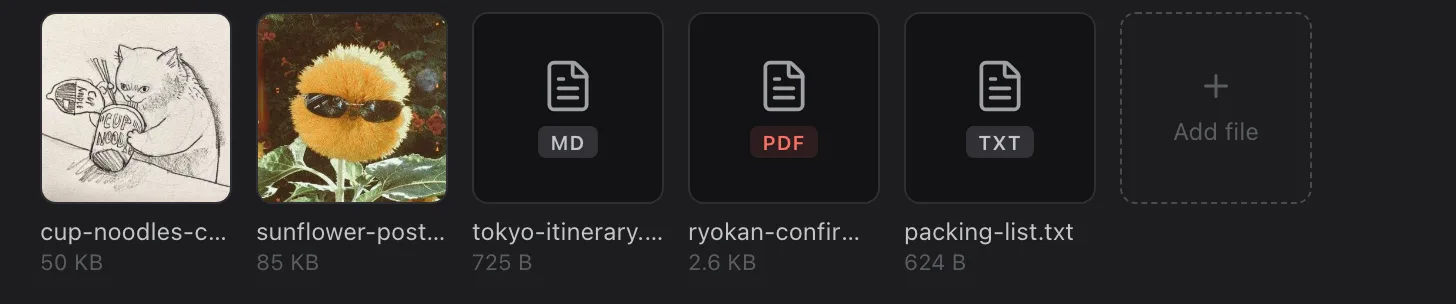
Each file uploads with its own progress bar, and a cancel button stops it. Pick five files at once and they go up side by side. If one fails, it stays as a red tile that says why, with a Retry when a second try can help, so the others aren’t held up by it.
The app checks a file before it uploads: its type, its size, and the room left on your plan. The server checks all of it again, and reads the first bytes of the file, so a file renamed to look like a picture is turned away.
Opening a file without downloading it
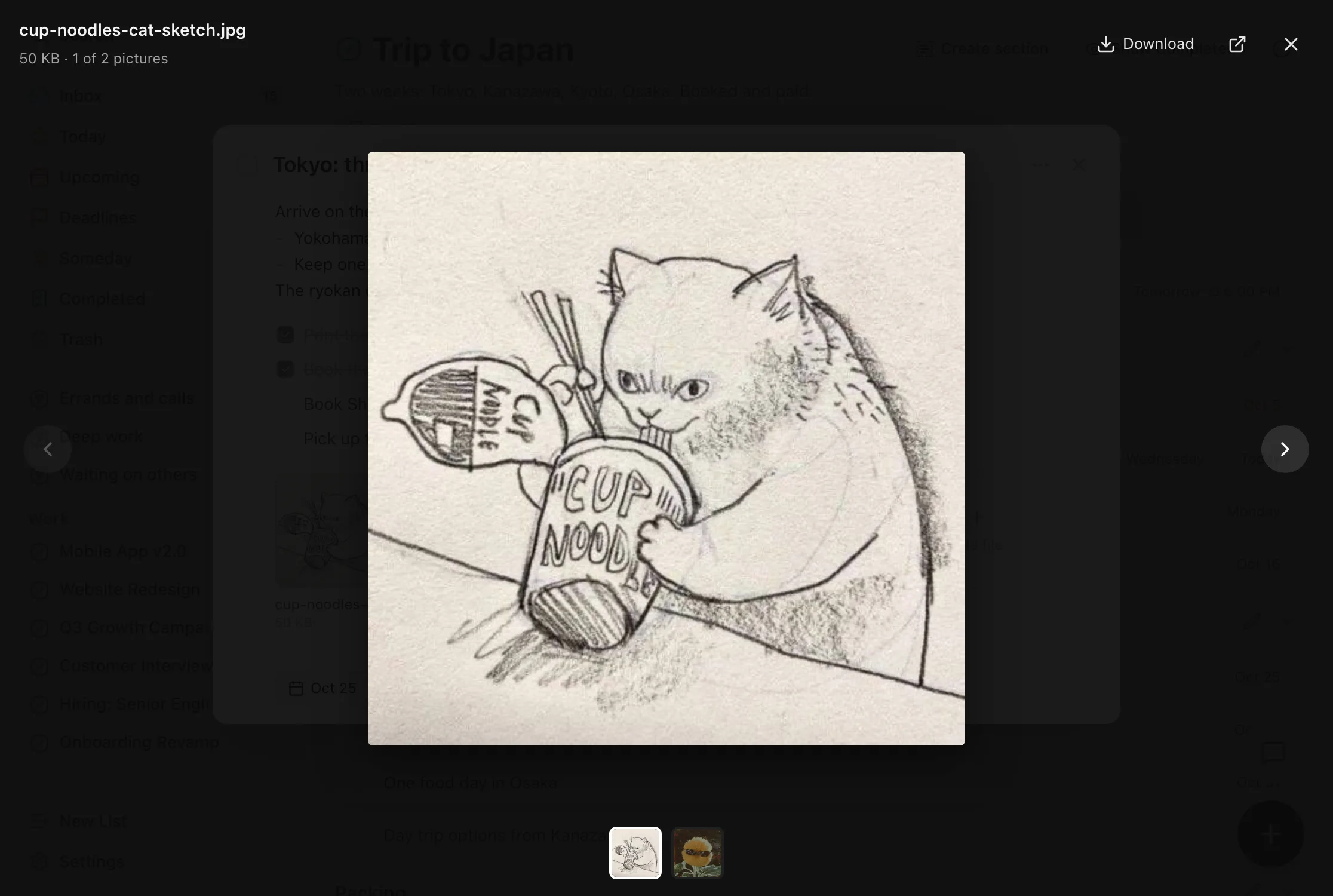
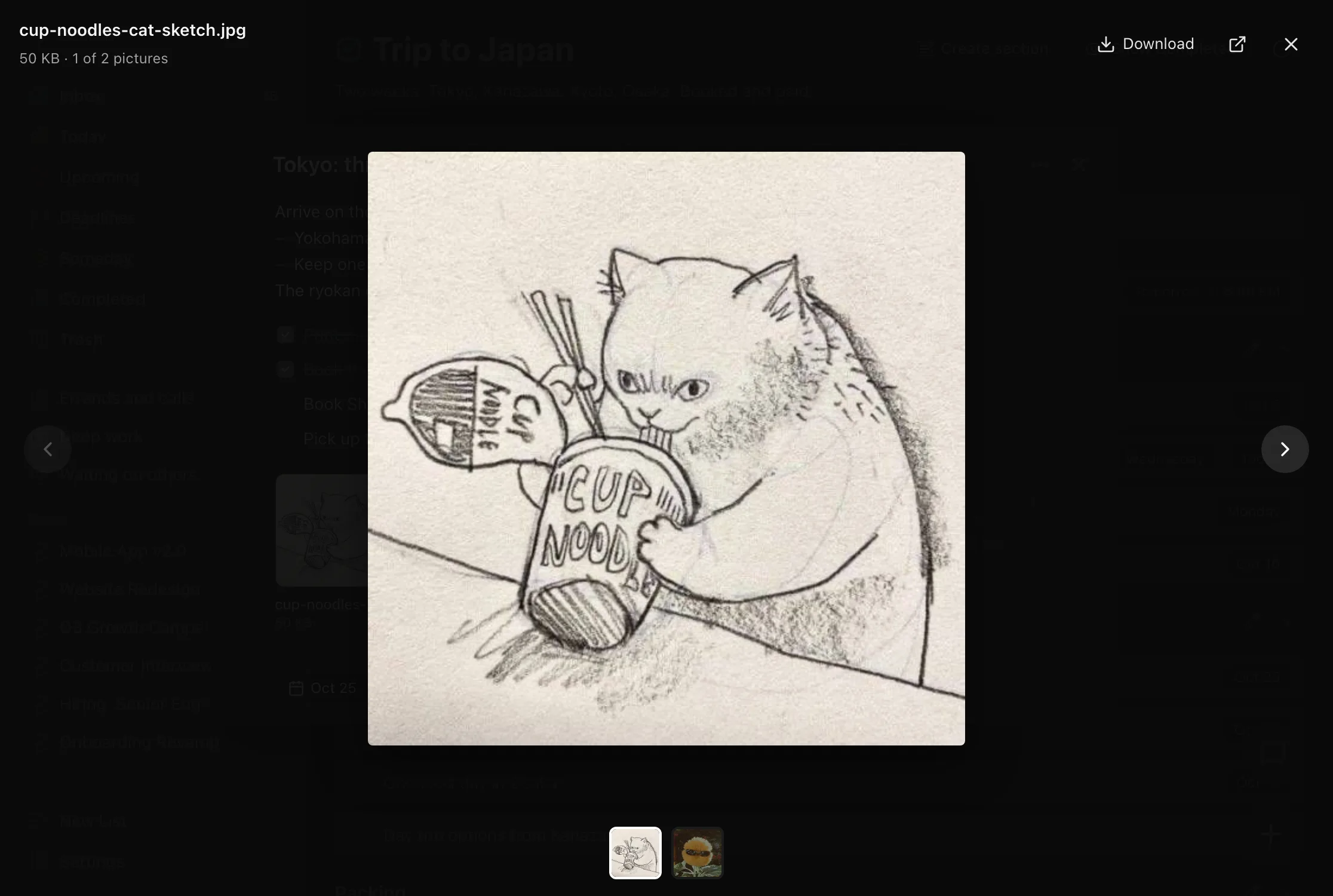
Click a picture and it opens in a viewer over the task, with the other pictures of the task in a strip below it. The arrow keys move between them, and Download keeps a copy.
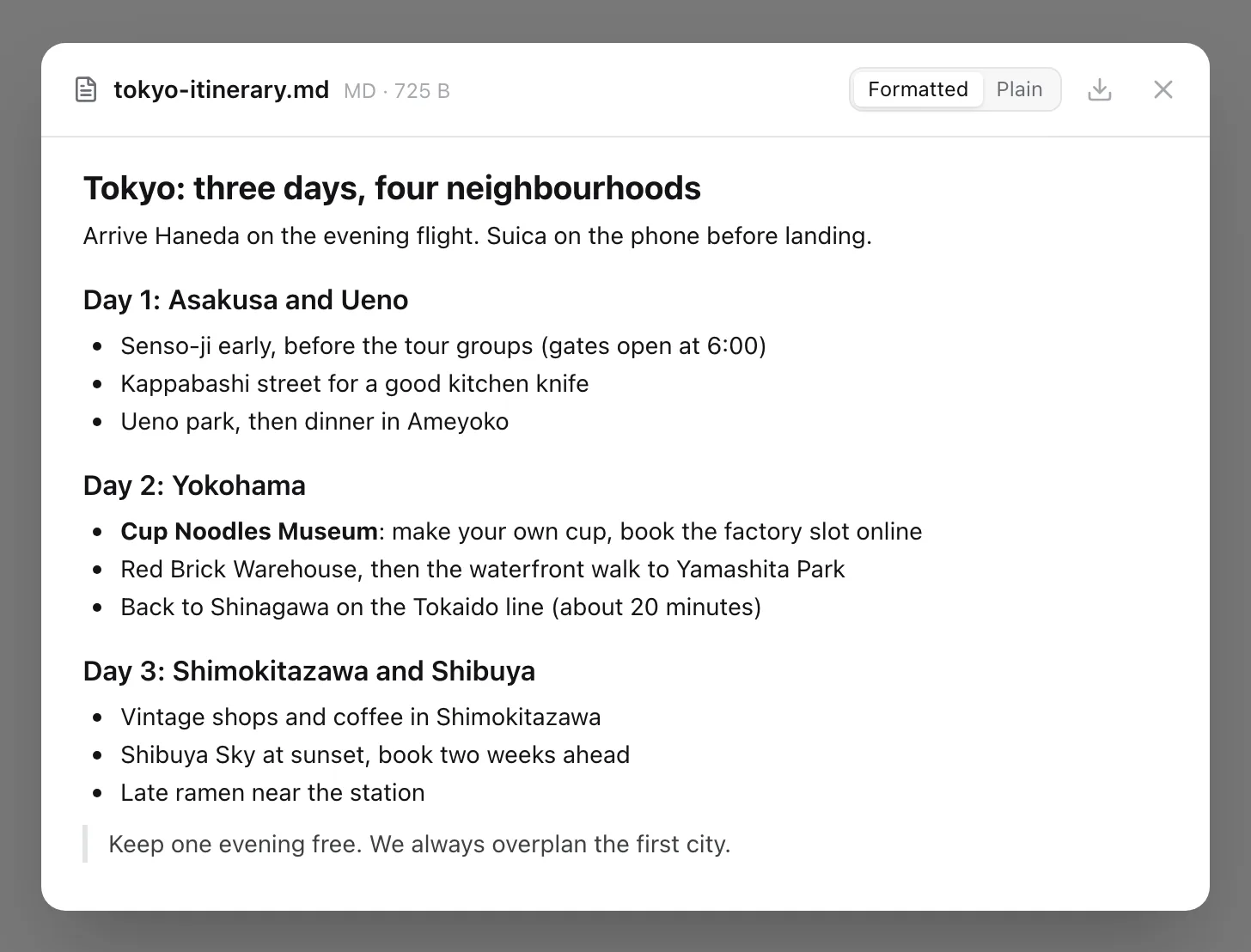
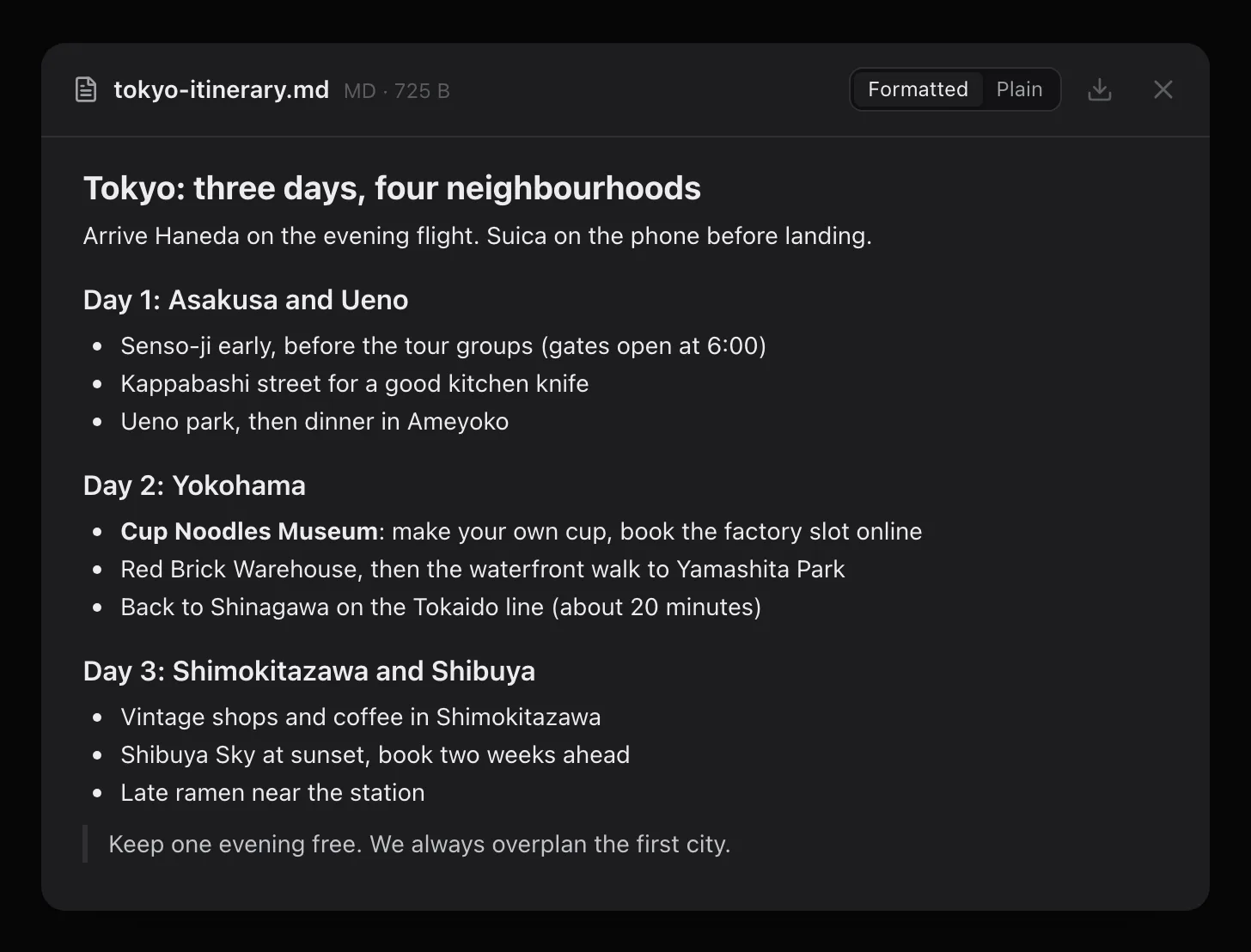
A text or Markdown file opens in the app too. Markdown is shown formatted, with its headings and lists, and a switch shows the plain text. A text file saved in an older Windows encoding still reads correctly.
A PDF opens in a new browser tab, where the browser’s own viewer shows it. Word, Excel, PowerPoint, Pages, Numbers, Keynote, OpenDocument, RTF, CSV and ZIP files download, and so do HEIC photos, which most browsers can’t show. Nothing is edited in place: change the file on your computer and attach the new version.
How much you can store
Files are on every plan. The plans differ in how big a file can be and how much you can keep in total:
- Free: 10 MB a file and 100 MB in total. That is a lot of PDFs and phone photos, and not many scans at full resolution.
- Premium: 100 MB a file and 5 GB in total. The 5 GB is a hard cap on the lifetime plan too, because storage keeps costing money after a one-time payment.
Settings → Storage shows how much you use, how many files you have, and how much of it sits in the Trash. Every file is in one list, largest first or newest first, with a download button and a remove button, so you can clean up without hunting through tasks.
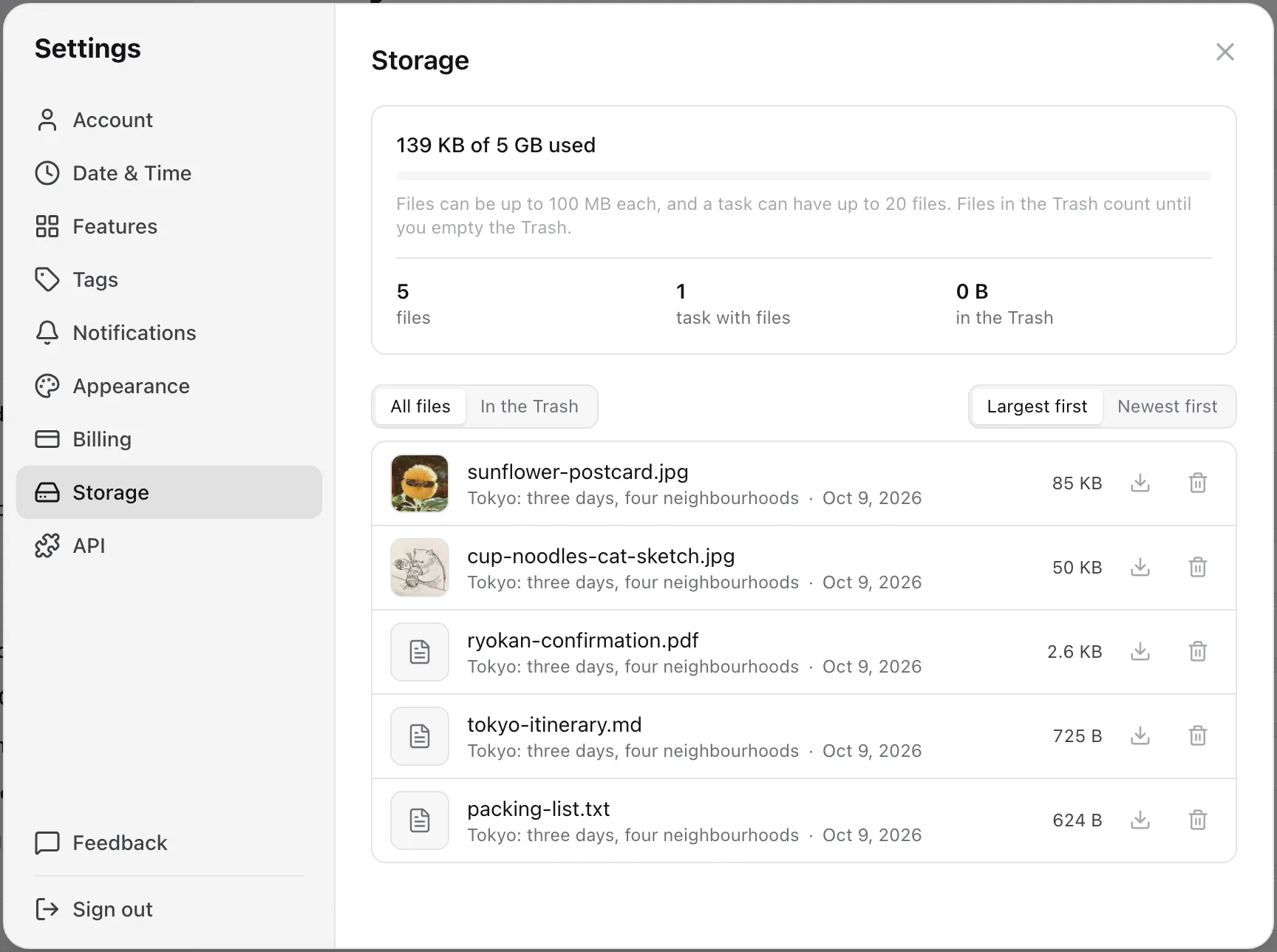
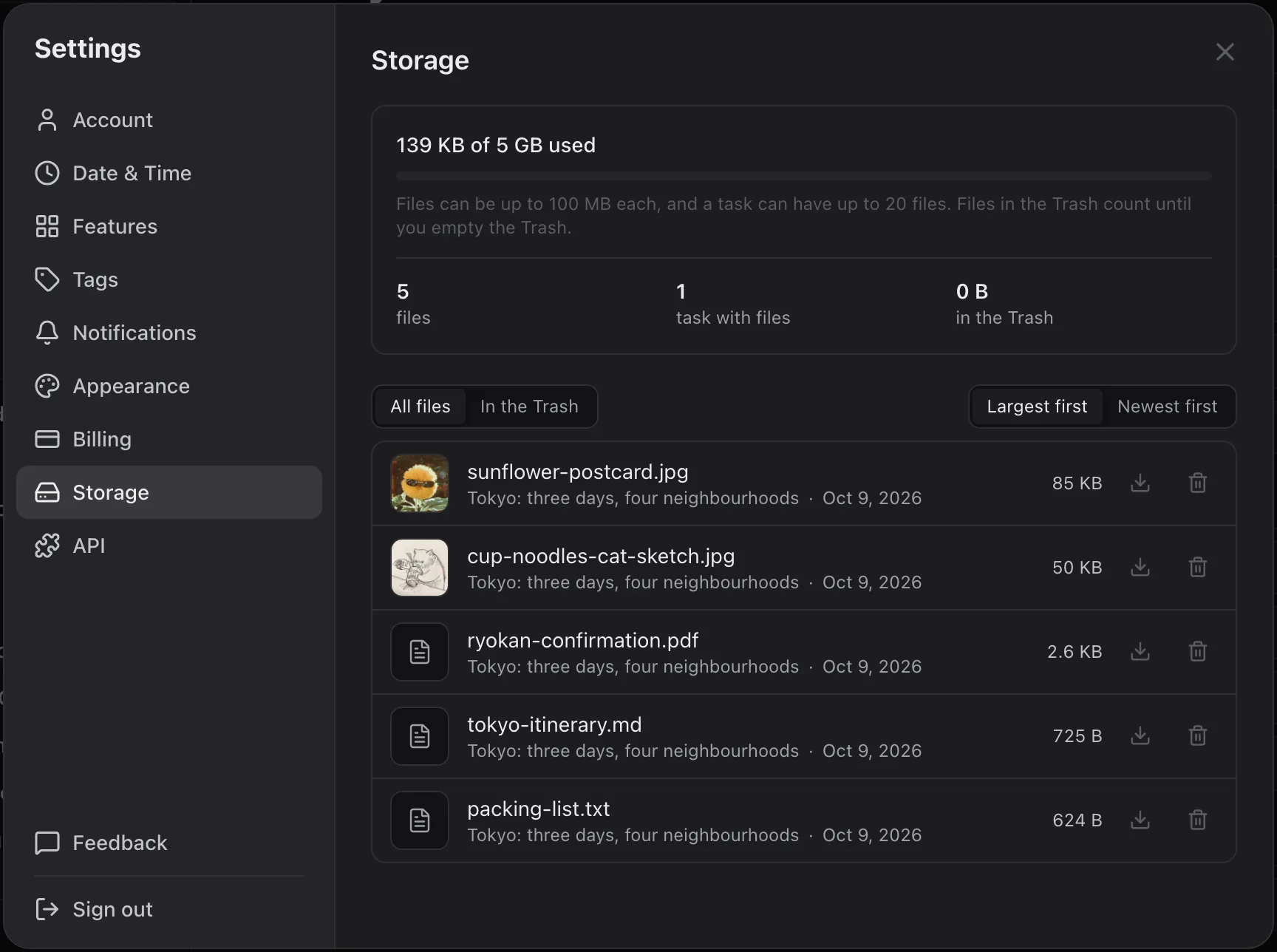
A removed file comes back with Undo, and the files of a task in the Trash count until you empty the Trash. If you stop paying, nothing is deleted: every file stays and opens, and new uploads wait until you are under the free limit again. The same rule covers projects and areas on the free plan.
On iPhone
The iPhone app shows the same files in the task, and “Add attachment” opens a menu with three sources: the photo library, the camera, and Files, which reaches iCloud Drive and the file providers of other apps. Photos taken in the iPhone’s HEIC format are converted to JPEG on the way, so they preview on the web too.
Tap a picture for a full-screen viewer that swipes between the task’s pictures. A text or Markdown file opens as plain text, a PDF opens in an in-app browser, and anything else opens in the share sheet, where Quick Look previews Office files and Save to Files keeps a copy. A long press on a tile offers Share and Remove.
Two things are different on the phone. The rest of the iPhone app works offline, but files don’t: adding or opening one needs a connection. And the iPhone has no storage screen; use Settings → Storage on the web for that.
Where the files are kept
Files are stored in a private bucket. Nothing in it is public, and nobody can list it. The app gets a link to a file when it needs one, and the link stops working after a few minutes, so a link copied from your browser doesn’t keep working for anyone else. Picture thumbnails are made on the server, so the original never has to load just to show a tile.
The JSON export lists every file with its name, type and size, but it doesn’t contain the files themselves. Download the ones you want from Settings → Storage. Deleting your account deletes every file with it. The privacy policy has the details.
How other task apps handle files
Most task apps take files in some form, and the differences are in where a file goes and what the free plan allows. The table states only what each vendor documents.
| Feature | Todoist | TickTick | Apple Reminders | TaskPocket |
|---|---|---|---|---|
| Files on a task | Yes1 | Yes2 | Partial3 | Yes4 |
| Free plan | Yes5 | Partial6 | Unknown7 | Yes8 |
| Paid plan | Yes9 | Yes10 | Unknown | Yes11 |
| Video and audio | Partial12 | Yes13 | Unknown | No |
- As a file on a comment, one file per comment.
- Up to 20 per task.
- Photos and scanned documents, in the Apple apps.
- On the task itself, up to 20.
- 5 MB per file on Beginner.
- One upload a day, 10 MB per file.
- Apple documents no size limit.
- 10 MB per file, 100 MB in total, no daily count.
- 100 MB per file on Pro. No total cap documented.
- 20 MB per file on Premium.
- 100 MB per file, 5 GB in total.
- Video files (.mov, .mp4, .webm). No audio type is listed.
- Recordings and videos.
Todoist takes more kinds of file than TaskPocket, video included, and documents no cap on the total. Its files go on comments, one per comment, so a task with five files has five comments. If you keep video with your tasks, Todoist or TickTick fits better. TickTick also takes voice recordings, and its free plan counts uploads: one a day. More in TaskPocket vs Todoist and the TickTick alternative page.
Apple Reminders can hold photos and scanned documents, and it scans paper with the camera straight into a reminder, which TaskPocket can’t. Things 3 doesn’t attach files to a to-do: a file shared from the Finder becomes a link to where it sits on that Mac. The full comparison is in TaskPocket vs Things 3.
What this doesn't do
- No video and no audio files, and no SVG. Pictures, PDFs, office and iWork documents, OpenDocument, RTF, text, Markdown, CSV and ZIP only.
- Files don’t work offline, on the web or on iPhone. Adding or opening one needs a connection.
- Nothing is edited in place. A PDF opens in the browser, and Office and iWork files download or open in the share sheet.
- HEIC photos added from the web don’t preview in the browser. Photos picked on iPhone are converted to JPEG, so they do.
- Files go on tasks only: not on a project, an area, or inside the notes.
- The iPhone has no storage screen, its text viewer shows Markdown as plain text, and its share extension doesn’t take files.
- The JSON export lists your files but doesn’t contain them. Download them from Settings → Storage.
- No paste: drop files on the task, or use Add attachment.
Questions people ask
Can I attach files to tasks in TaskPocket?
Yes, on every plan, on the web and on iPhone. A task holds up to 20 files: pictures, PDFs, documents, spreadsheets, text and Markdown files, CSV and ZIP. Free stores 100 MB in total, 10 MB a file.
How much file storage does the free plan have?
100 MB in total, at up to 10 MB a file. Premium raises that to 5 GB and 100 MB a file, the lifetime plan included. Files of tasks in the Trash count until you empty it.
Can I preview a PDF without downloading it?
Yes. A PDF opens in a new browser tab on the web, and in an in-app browser on iPhone. Pictures, text and Markdown files open inside TaskPocket itself.
What happens to my files if I cancel Premium?
Nothing is deleted. Every file stays and opens. New uploads wait until your total is under the free plan’s 100 MB.
Can I attach a video or a voice memo?
No. TaskPocket takes no video or audio files. Todoist takes video files on comments, and TickTick takes recordings and video.
Are my attached files private?
Yes. They are stored in a private bucket, and every link to a file stops working after a few minutes. Deleting your account deletes them all.
Sources
- Todoist — Pricing (File uploads: 5 MB on Beginner, 100 MB on Pro)checked 2026-10-09
- Todoist Help — Introduction to comments and file uploadschecked 2026-10-09
- TickTick Help — Attachments (10 MB free, 20 MB Premium, one upload a day free, 20 per task)checked 2026-10-09
- Apple — Add details to reminders on iPhone (photos and scanned documents)checked 2026-10-09
- Things Support — FAQ (no photos or files on a to-do)checked 2026-10-09
Files are on every plan, on the web and on iPhone. Free stores 100 MB; Premium stores 5 GB and takes files up to 100 MB.
Start my list — free